
Open original guide with interactive examples →
Watch the walkthrough
A narrated two-minute introduction and walkthrough. Turn on captions with the CC button. The contacts and numbers on screen are example data.
The short version Open Agent Command Center → Call Queues and open a queue. In the last step, Who works it, find the AI agent card. Turn it on, choose Lines at once and the hours it may call, then click Save AI agent. The AI calls contacts who are opted in to texts or not marked Do not call, only inside each contact’s own local calling hours, and retries on your queue’s own schedule.
Why it matters
Most dials in a busy queue ring out. Your agents spend hours on calls nobody answers, and older leads wait days for their next try.
BeforeAgents work every lead by hand. Aged and no-answer leads fall to the bottom, and an AI campaign runs separately, with its own list and its own rules.
NowThe AI agent works the same queue, in the same order, under the same attempt and waiting rules, and never calls someone an agent is already on the phone with.
Why that helpsEvery lead is worked the same predictable way, your team focuses on live conversations, and you can compare AI and agent results queue by queue.
Good uses: working aged or no-answer leads in the background, covering a queue while your team is busy, or piloting AI calling on one queue with one or two lines.
Before you start
- Owner or admin. Only workspace owners and admins can see and change the AI agent card.
- A saved queue. The card appears on queues that are already saved. Building a new one? Click Save queue first.
- Your phone AI is set up. The AI agent uses your workspace’s phone AI: its voice, its questions and its appointment booking. If you haven’t set it up, ask us.
- Know who it will call. The AI calls contacts who are opted in to texts or whose lead status is not Do not call. It never calls anyone marked Do not call, on your Do not call list, or who has withdrawn consent.
- Retry settings on the queue. Switch on How often it comes back (the Pace card) so calls to the same lead are spaced out. See How often it tries again.
About consent Rules for automated and AI calls vary by state and lead source. Check with your own legal adviser before you turn on AI calling, especially for older leads.
Set it up
- Open Agent Command Center from the dock and click Call Queues in the left menu.
- Click the queue the AI should work. The queue editor opens.
- Scroll to the last step, Who works it. The AI agent card sits below Serve it to.
- Turn on the switch at the top right of the card.
- Choose the settings below, then click Save AI agent. The card saves on its own; you don’t need to click Save queue.
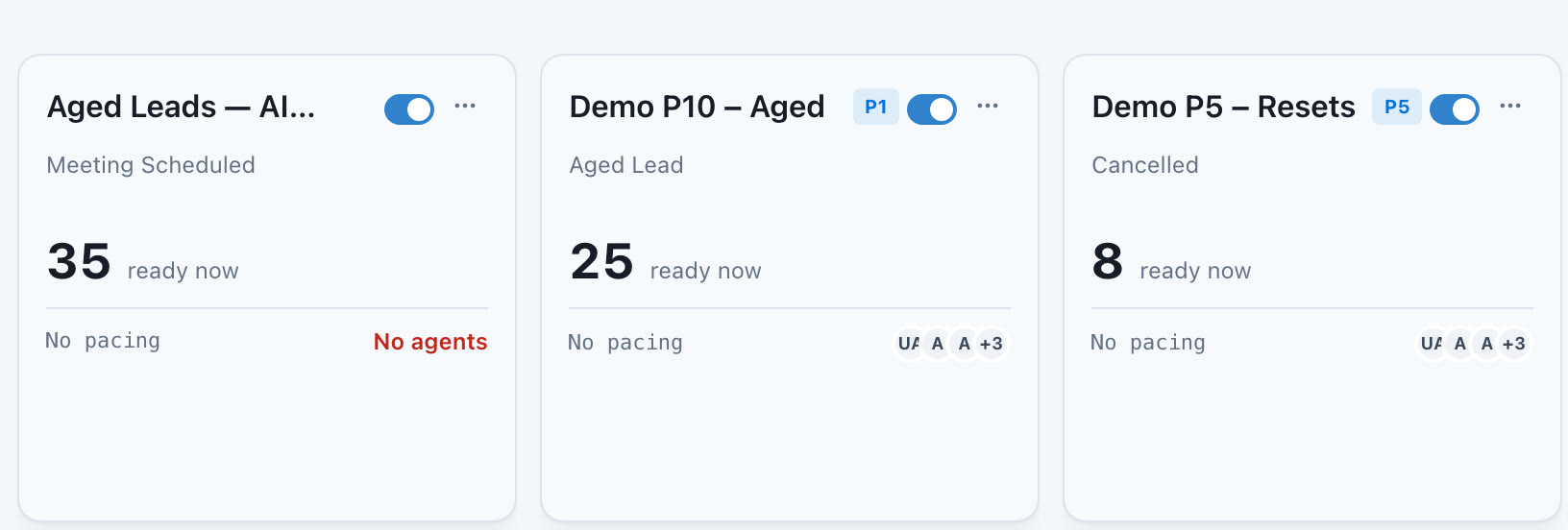
ExamplePick the queue in Call Queues.
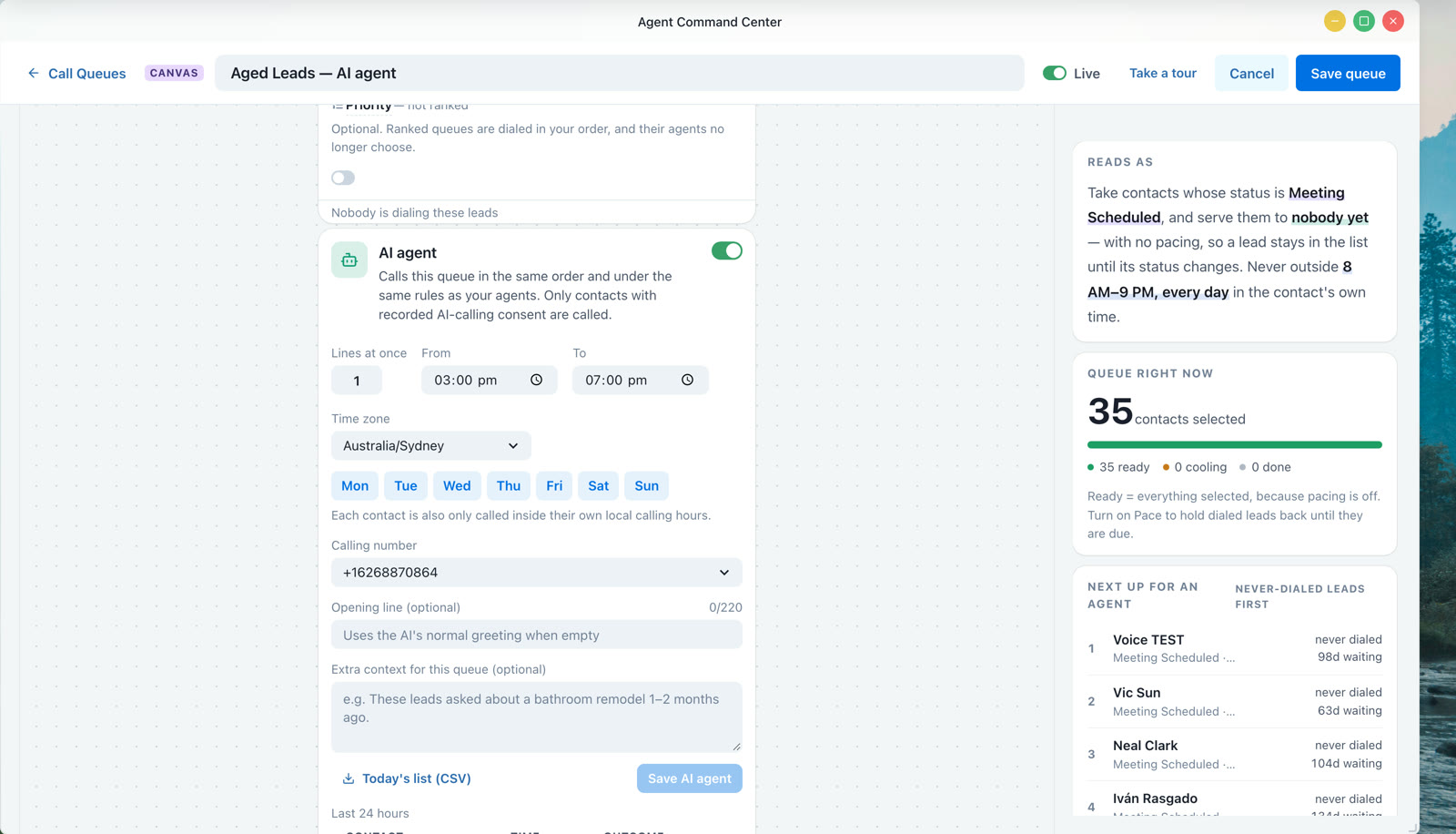
ExampleThe queue editor, scrolled to the AI agent card. The right side reads the queue back in plain English and shows who is next.
The settings
| Setting | What it does |
|---|---|
| Switch | Turns the AI agent on or off for this queue. Off is the default. |
| Lines at once | How many AI calls can run at the same time, from 1 to 5. Start with 1 or 2. |
| From / To | The hours the AI may call this queue, in the time zone you pick. |
| Time zone | The time zone for From and To. |
| Days | The days the AI may call. Click a day to turn it on or off. |
| Opening line (optional) | The first sentence the AI says, up to 220 characters. Leave it empty to use the AI’s normal greeting. |
| Extra context (optional) | A note the AI reads before every call in this queue, such as “These leads asked about a bathroom remodel 1–2 months ago.” |
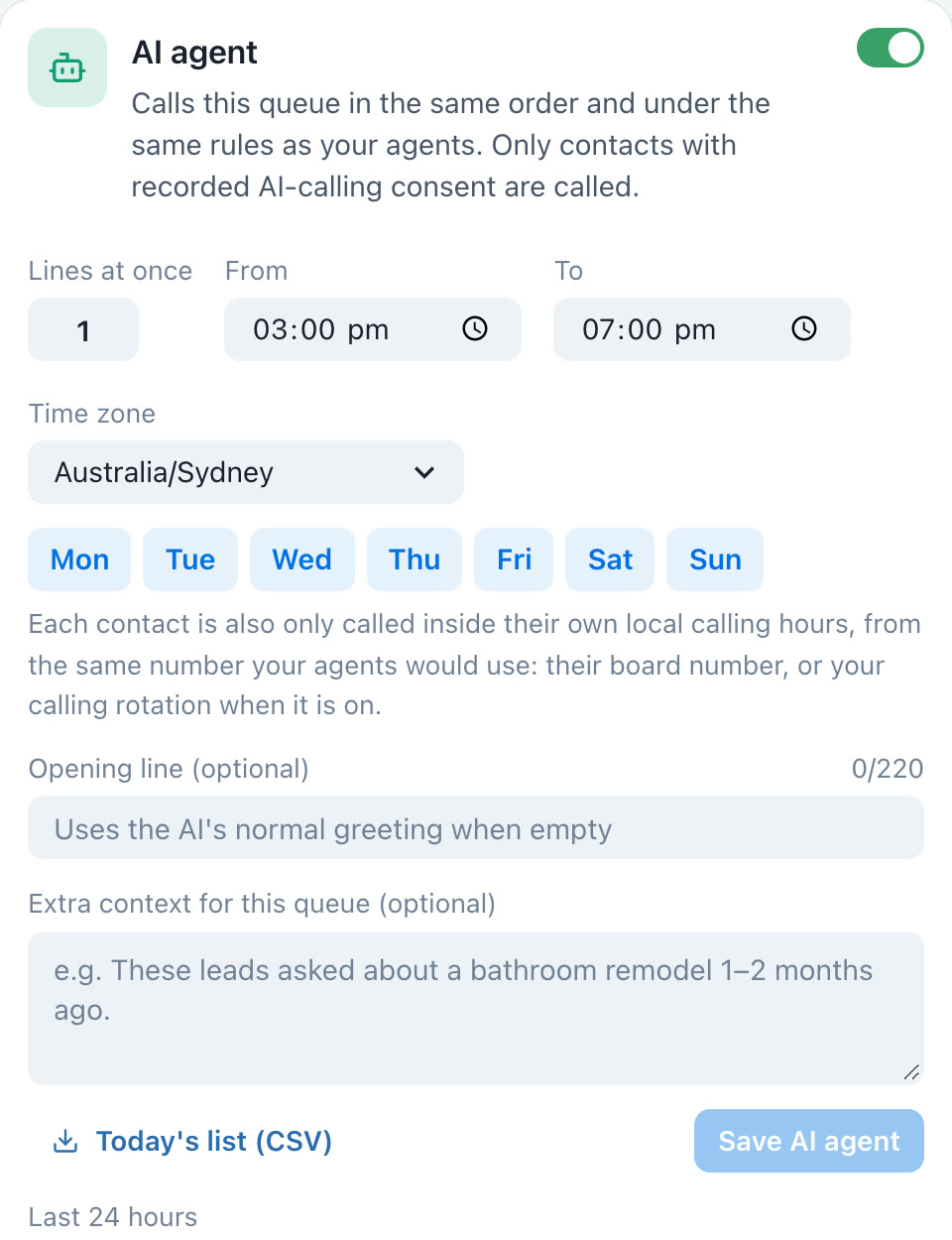
ExampleThe AI agent card, switched on.
Two clocks Your From and To hours decide when the AI works this queue. On top of that, every contact is only called inside their own local calling hours, so someone in another time zone is never called too early or too late.
Which number it calls from The same number your agents would use for that contact: the contact’s board number, or your calling rotation when Number Rotation is on. AI and agent calls count toward the same daily limit per number, so turning the AI on never pushes a number past it.
What the AI does on a call
Books the appointmentWhen the person is ready, the AI books it in your calendar. The call shows as Appointment set.
Offers a callbackIf they ask for a person or a better time, the AI saves the day and time they choose. The call shows as Callback.
Hangs up on voicemailIf an answering machine picks up, the AI hangs up before it speaks. The call shows as No answer.
**Honors “don’t call me”**If the person asks not to be called, they’re marked Do not call right away, for calls, texts and emails.
Uses your outcomesEvery call gets one of the same outcomes your agents choose, so queue rules like “stop after an appointment” work the same way.
Keeps the queue movingEach AI call counts as an attempt, so the queue’s waiting time and attempt limit apply to the next try.
How often it tries a lead again
The AI agent card has no retry setting. The AI uses your queue’s retry settings, the same ones that pace your agents, set on the queue editor. Agent and AI calls share one count: if the queue allows 6 attempts and an agent already dialed a lead twice, the AI has 4 left.
| Setting | Where | What you control |
|---|---|---|
| How often it comes back | The Pace card | How many attempts in total, and how long to wait after attempt 1, 2, 3 and 4+, plus a separate wait for busy. Switching it on suggests 6 attempts with waits of 4 hours, 1 day, 3 days and 7 days, and 30 minutes for busy. Every number can be changed. |
| What each call result does next | The card under Pace | Its own wait for each result, for example No answer after 2 hours or Dropped after 15 minutes. Results you leave alone follow the Pace card. |
| AI waits between its own calls | Set by us | The AI never calls the same lead twice within 24 hours, whatever the queue says. Ask us if you need a different gap. |
When more than one applies, the longest wait wins.
| What happened on the AI call | Shown as | When it tries again |
|---|---|---|
| Nobody picked up | No answer | After the queue’s wait |
| Voicemail picked up (the AI hangs up before speaking) | No answer | After the queue’s No answer wait. The Voicemail row in the result rules is for agent calls. |
| Line was busy | Busy | The busy wait, but not sooner than 24 hours |
| The call couldn’t connect | Dropped | After the queue’s wait |
| Appointment booked, or “don’t call me” | Appointment set / Do not call | Never. The lead is done. |
Example With the suggested settings: attempt 1 today, attempt 2 a day later (the AI’s 24-hour wait is longer than the 4-hour step), then 1 day, 3 days, 7 days and 7 days apart. After attempt 6 the lead is done.
Before you switch the AI on If a queue has neither retry card switched on, nothing spaces out the calls. Switch on How often it comes back first.
See the results
- The bottom of the card shows calls now, calls today, appointments, and the share of answered calls that booked.
- The booking share shows — until there are at least 20 answered calls, so a small sample never looks like a result.
- Last 24 hours lists each call with its time and outcome. Not placed means the call never went out (nothing was dialed), and Skipped means a safety check stopped it.
- Click Today’s list (CSV) to download who the AI called today. Handy if your team also dials from another system and wants to skip those leads.
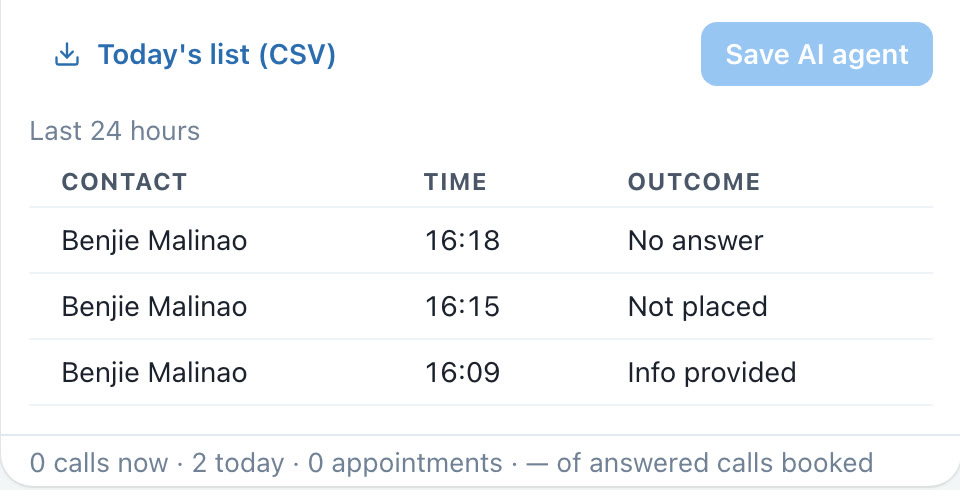
ExampleToday’s AI calls on the card.
Rules it always follows
| Rule | What happens |
|---|---|
| Queue order | The AI takes the next lead exactly as your agents would get it. |
| Never two at once | If an agent is already calling a lead, the AI skips them, and the other way round. |
| Attempts and waits | AI calls count toward the queue’s attempt limit and waiting time. |
| Who it calls | Contacts opted in to texts or not marked Do not call. Anyone who has withdrawn consent is skipped. |
| Local calling hours | Only inside your From/To hours and the contact’s own local calling hours. If we can’t tell where a contact is, the AI doesn’t call them. |
| Do not call | Anyone on your Do not call list is never called. |
| Not too often | The AI never calls the same contact twice within 24 hours, and your workspace’s limit on AI calls per contact per day applies to every AI call. |
| Separate stats | AI calls don’t count in your agents’ personal calling stats. |
Tips
Start smallOne queue, one or two lines, a few hours a day. Check the list each afternoon, then grow.
Pick the right queueAged or no-answer leads are a good first queue: lots of dials, few answers.
Give it contextOne line in Extra context (“asked about a walk-in shower in August”) makes the opening feel personal.
Compare fairlyLook at appointments per answered call, not total dials, when you compare the AI with your team.
Troubleshooting
| What you see | Why | Fix |
|---|---|---|
| No AI calls at all | The card is off, it’s outside your From/To hours or days, or every lead in the queue is waiting for its next try or marked Do not call. | Check the switch, hours and days, and the queue’s ready count. |
| The same lead is called again too soon | The queue has no retry settings switched on. | Switch on How often it comes back on the queue. See How often it tries again. |
| A lead isn’t being called | It’s outside their local calling hours, they were called recently, an agent is on the phone with them, or they’re on Do not call. | Nothing to fix; the AI tries again when the lead is due. |
| “Paused: auto: 5 dial errors in a row” | Five calls in a row couldn’t be placed, so the AI stopped to protect your numbers. | Ask us to check your calling numbers, then turn the switch off and on again. |
| The queue card says “No agents” | The queue has no human agents assigned. The AI agent still works it. | Add agents under Serve it to if people should also dial it. |
| A call shows “Not placed” | The call never went out, so nothing was dialed and no attempt was used. | No action needed. If you see many, contact support. |
| Save AI agent is greyed out | Nothing has changed since the last save. | Change a setting, then save. |
Still stuck? Contact our support team with the queue name, the contact’s name and the time of the call.
Questions
Will the AI call people my agents are calling? No. A lead being called by an agent is skipped by the AI, and a lead on an AI call is skipped for your agents.
Can it call at night? No. It only calls inside your From/To hours and inside each contact’s own local calling hours.
What if someone asks for a real person? The AI offers a callback and saves the time they choose. Your team sees it as a callback, like any other.
Does it leave voicemails? Not yet. It recognises voicemail and hangs up before it speaks.
Can I use a different script for each queue? The AI uses your workspace’s phone AI script. Each queue can add its own opening line and extra context.
How do I stop it? Turn off the switch on the card and click Save AI agent. Calls already in progress finish normally.
Can you help us get started? Yes. Contact our support team and we’ll set up your first queue and its retry settings with you.
Channel Automation · Help · Last updated 2026-10-31. Questions? Ask your account manager, or open Help Docs inside the app — the same guidance lives there.