Watch the walkthrough
Why it matters
A long text can feel cold, and a phone call isn't always welcome. A short video shows your face, your product or the job site in a few seconds.
Good uses: a personal hello to a new lead, a quick product or project demonstration, a progress update from the job, or a reply to a customer who sent you a video of a problem.
Record on your computer
- Open Text Messages from the dock and choose a contact.
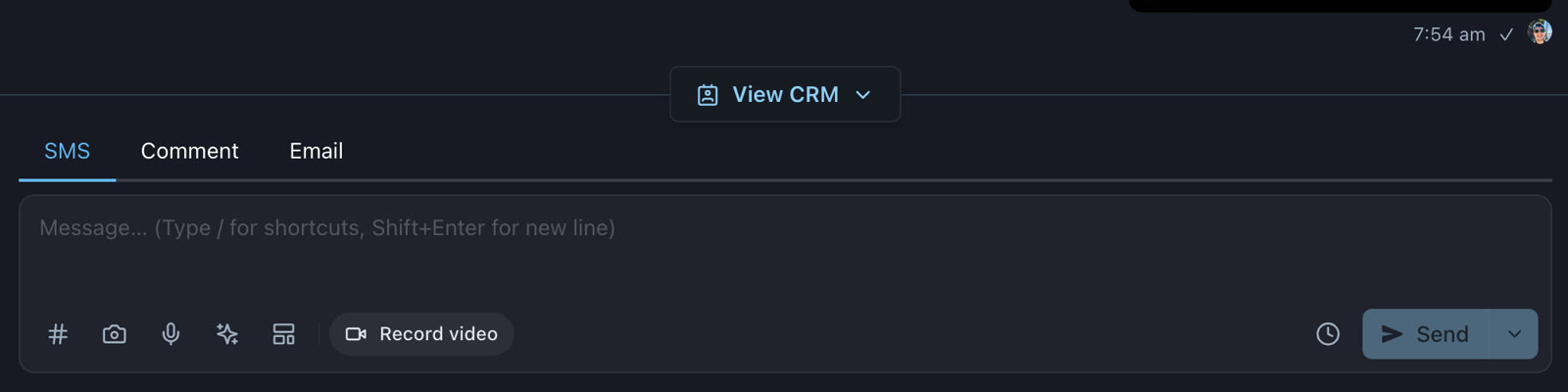
- Make sure the SMS tab is selected, then click Record video below the message box.
- The first time, your browser asks to use your camera and microphone. Click Allow.
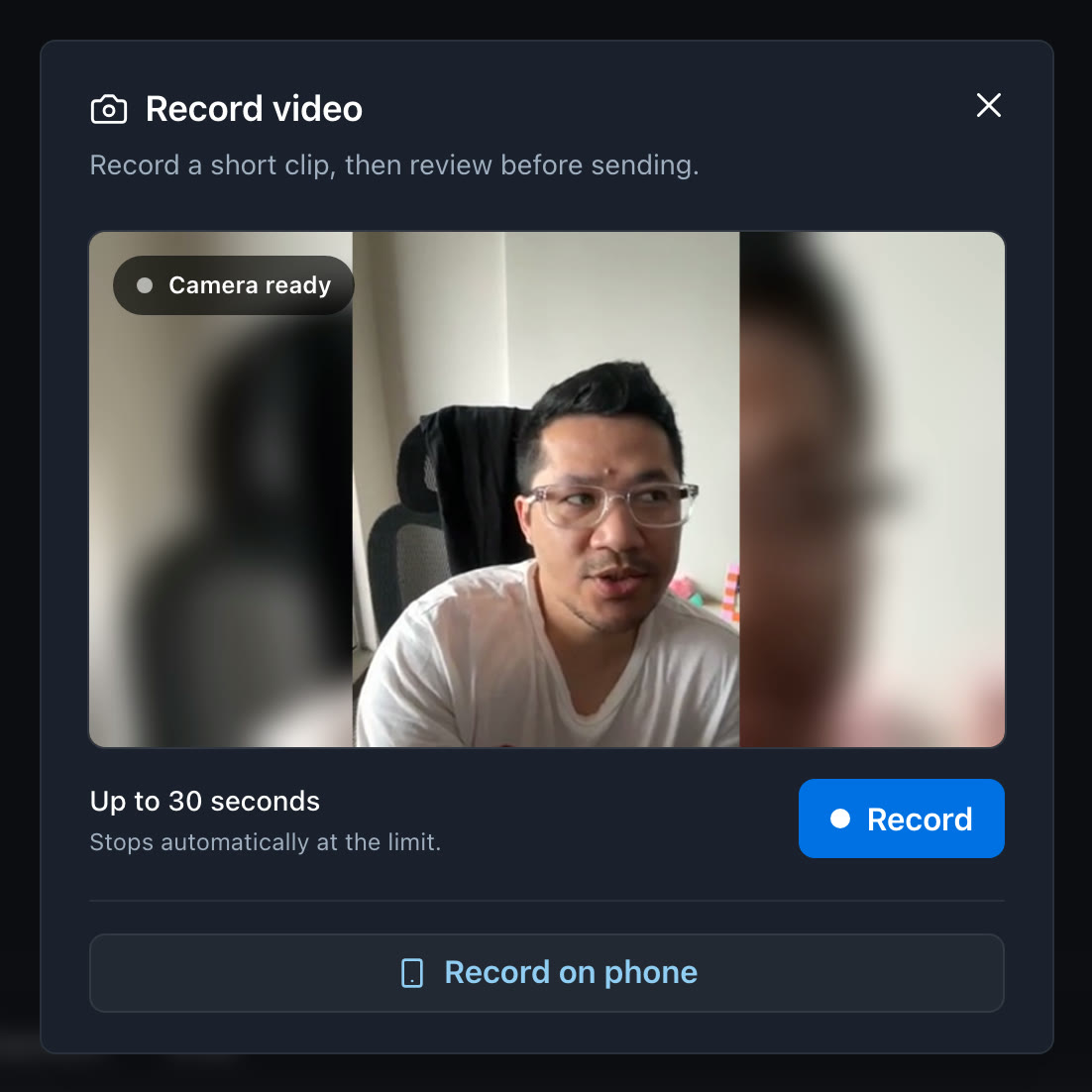
- When you see Camera ready, click Record. You have up to 30 seconds; the countdown shows the time remaining and recording stops on its own at the limit.
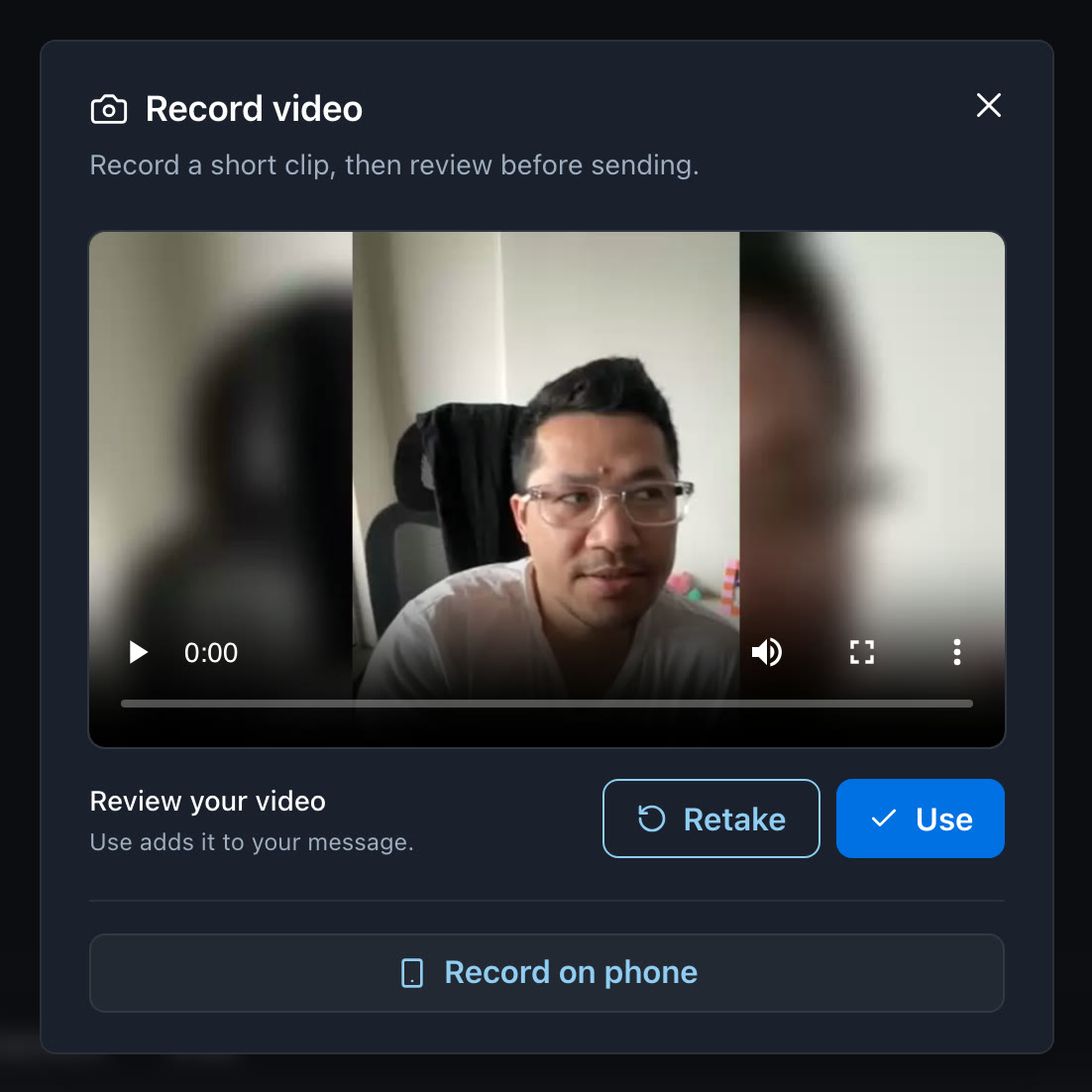
- Click Stop when you're done. Watch it back under Review your video.
- Click Retake to try again, or Use to add it to your message.
Record on your phone
Use your phone's camera when it's handier, for example on a job site or when your computer has no webcam. You don't sign in on the phone.
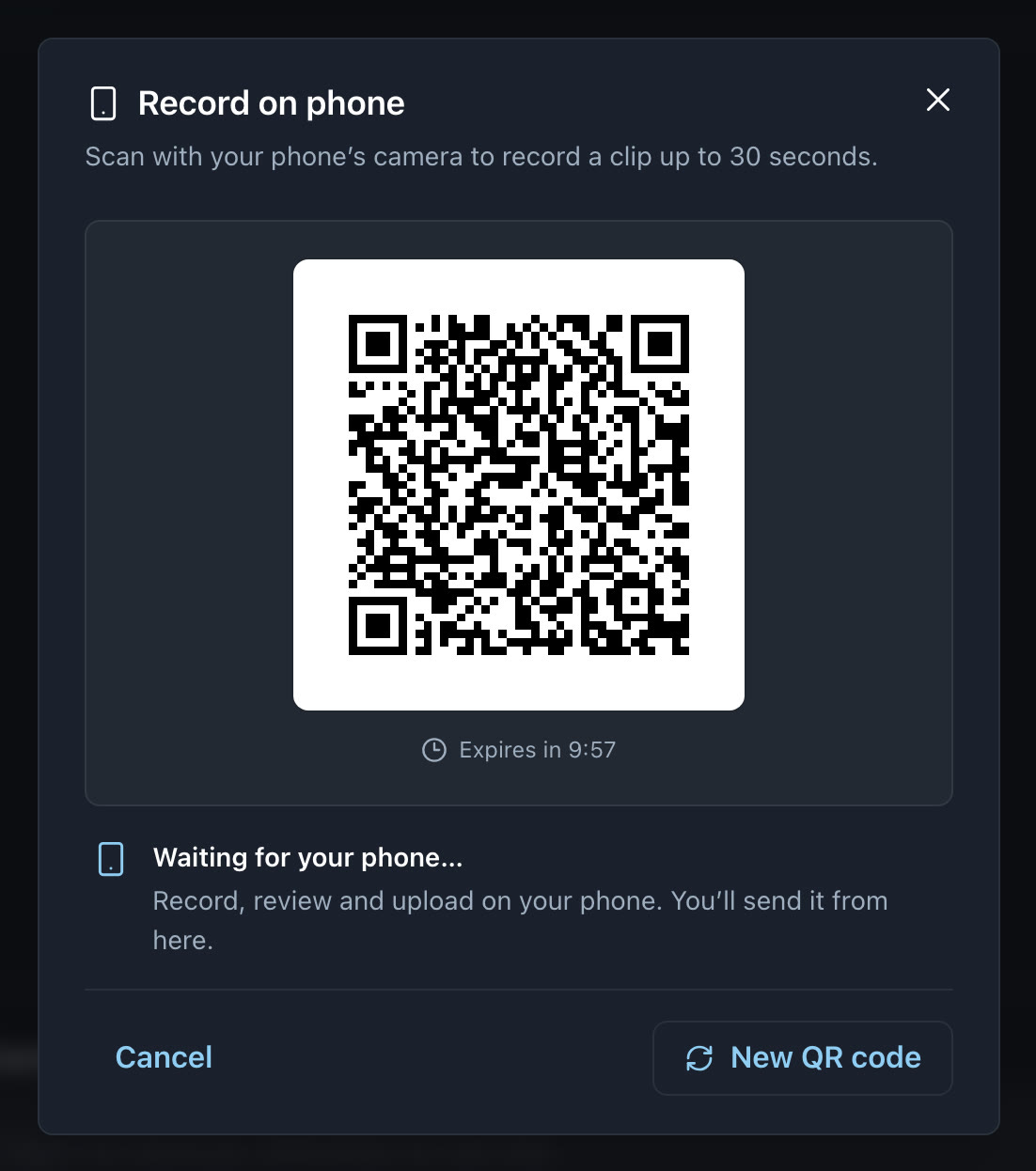
- In the conversation, click Record video, then Record on phone.
- Scan the QR code with your phone's camera and open the link.
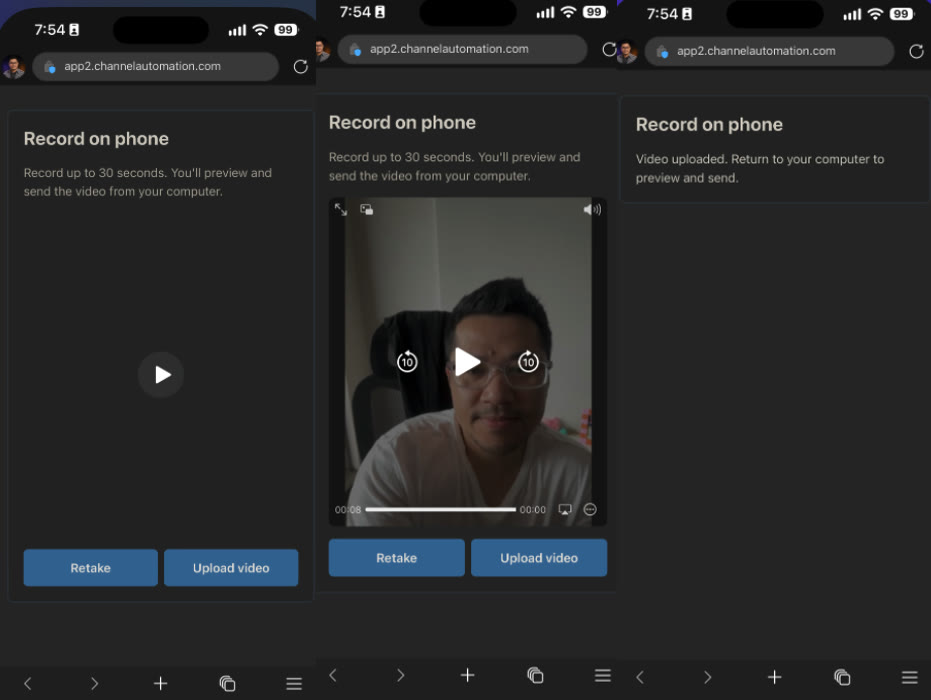
- On your phone, record a clip up to 30 seconds and watch it back. Tap Retake if needed.
- Tap Upload video. The phone shows Video uploaded. Return to your computer to preview and send.
- Back on your computer, the clip appears in the conversation's message box, ready to preview and send.
Use a clip you already have
- Click Attach image (the camera icon) below the message box and choose a video file.
- Choose a clip up to 30 seconds long and smaller than 50 MB.
- It's prepared for texting the same way as a recorded clip.
Review and send
- While Uploading… or Compressing… shows, the video is being prepared for texting and Send is unavailable.
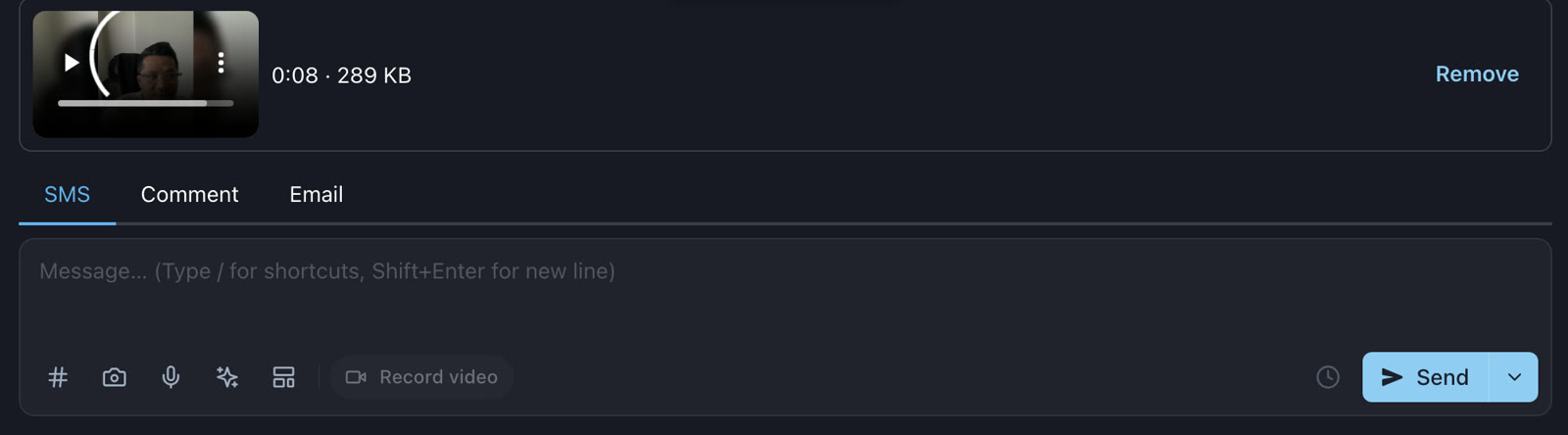
- When it's ready, the preview shows the clip's length and final size, for example 0:08 · 289 KB. Play it to check the result.
- Add a message if you like, then click Send or Send and Close.
- Changed your mind? Click Remove to discard the video and keep writing.
Watch videos in the conversation
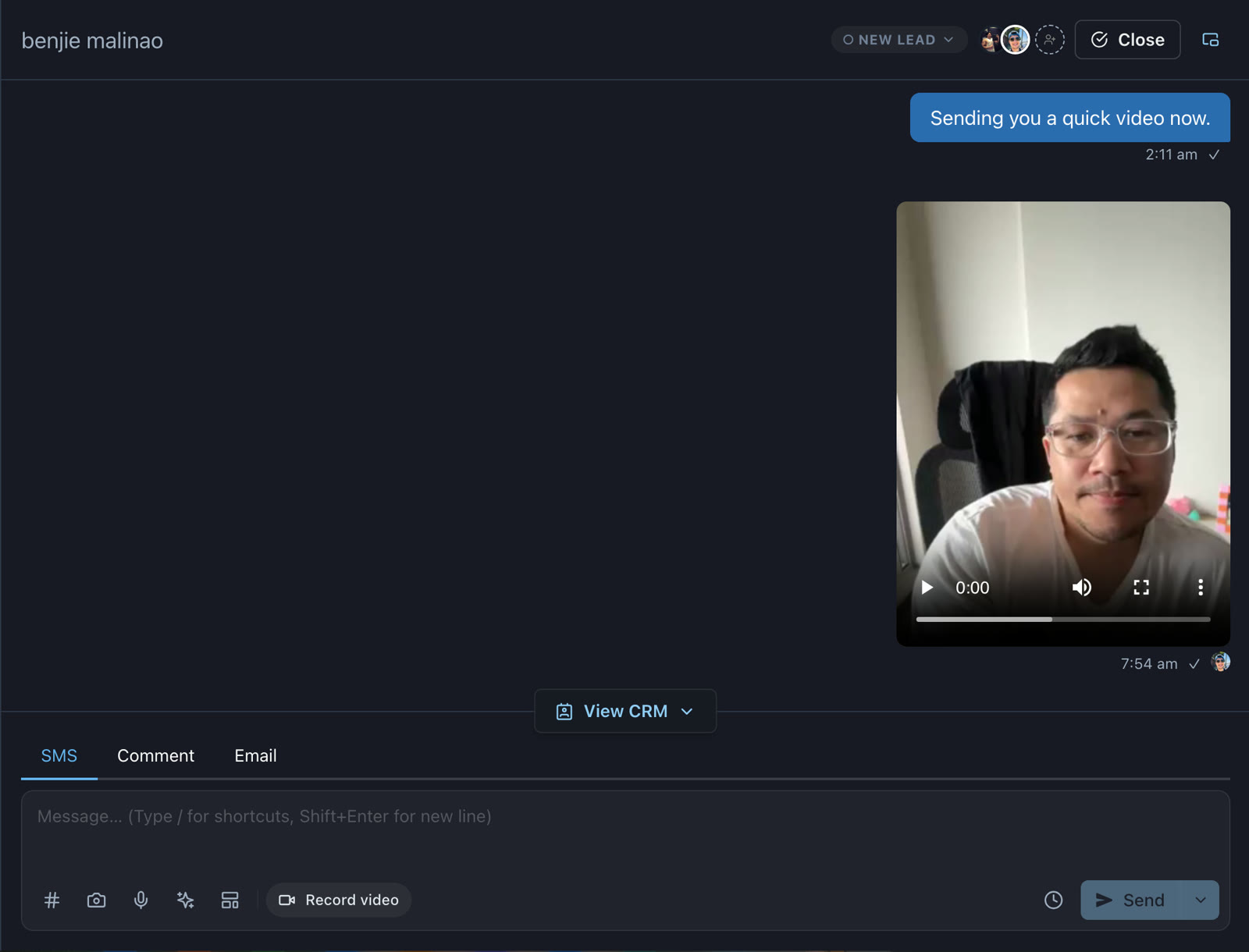
Videos you send appear in the conversation with playback controls.
When a customer sends you a video, it shows as a video attachment. Click Play video to load it, then use the playback controls. A message with videos and photos keeps each item in the conversation.
- If loading fails, click Retry video.
- If your browser can't play the format, use Open video or Download video.
How it's delivered
- Videos are compressed for texting so they arrive on your customer's phone. The preview shows exactly what will be sent.
- Videos go out the way your workspace already sends picture messages, from the conversation's usual number.
- If rich messaging (RCS) is enabled for your workspace and the contact, one photo or prepared video can go out over RCS, with or without text. If delivery falls back to a picture message, the same prepared video is used. An RCS badge appears only when delivery is confirmed over RCS.
Tips for a great video
Troubleshooting
| What you see | Why | Fix |
|---|---|---|
| "Allow camera access in your browser to record." | The browser blocked the camera or microphone. | Allow camera and microphone for this site in your browser's address bar, then click Retry. |
| Camera unavailable | No camera found, or another app is using it. | Close other video apps, or use Record on phone. |
| The clip is too long | Videos can be up to 30 seconds. | Trim the clip, or record a shorter one. |
| The video can't be made small enough to text | The clip has too much detail for a text message. | Try a shorter clip. |
| "Couldn't prepare the video." | Preparation didn't finish. Nothing was sent. | Click Retry, or Remove and try again. |
| The QR code expired | Each code works once, for 10 minutes. | Click New QR code and scan again. |
| Send is greyed out | The video is still uploading or compressing. | Wait for the length and size to appear in the preview. |
| A received video won't play | The video didn't load, or your browser can't play its format. | Click Retry video, or use Open video or Download video. |
Questions
Do we need to turn it on? No. Video messages are in LiveChat in every workspace today.
Can a video send by accident? No. Recording, uploading and preparing never send anything. A video goes out only when you click Send.
How long can a video be? Up to 30 seconds. Recording on your computer stops on its own at the limit.
Why does the video look softer than my original? Videos are compressed so they can be delivered as a text message. A shorter clip and good lighting give the clearest result.
Do I need to sign in on my phone? No. Scanning the code opens a one-time recording page for that conversation. It works once and expires after 10 minutes.
Can you help us get started? Yes. Contact our support team and we'll walk you through it.