Watch the walkthrough
Why it matters
A homeowner books an appointment, then a few days later someone they have never met knocks on their door. Many hesitate.
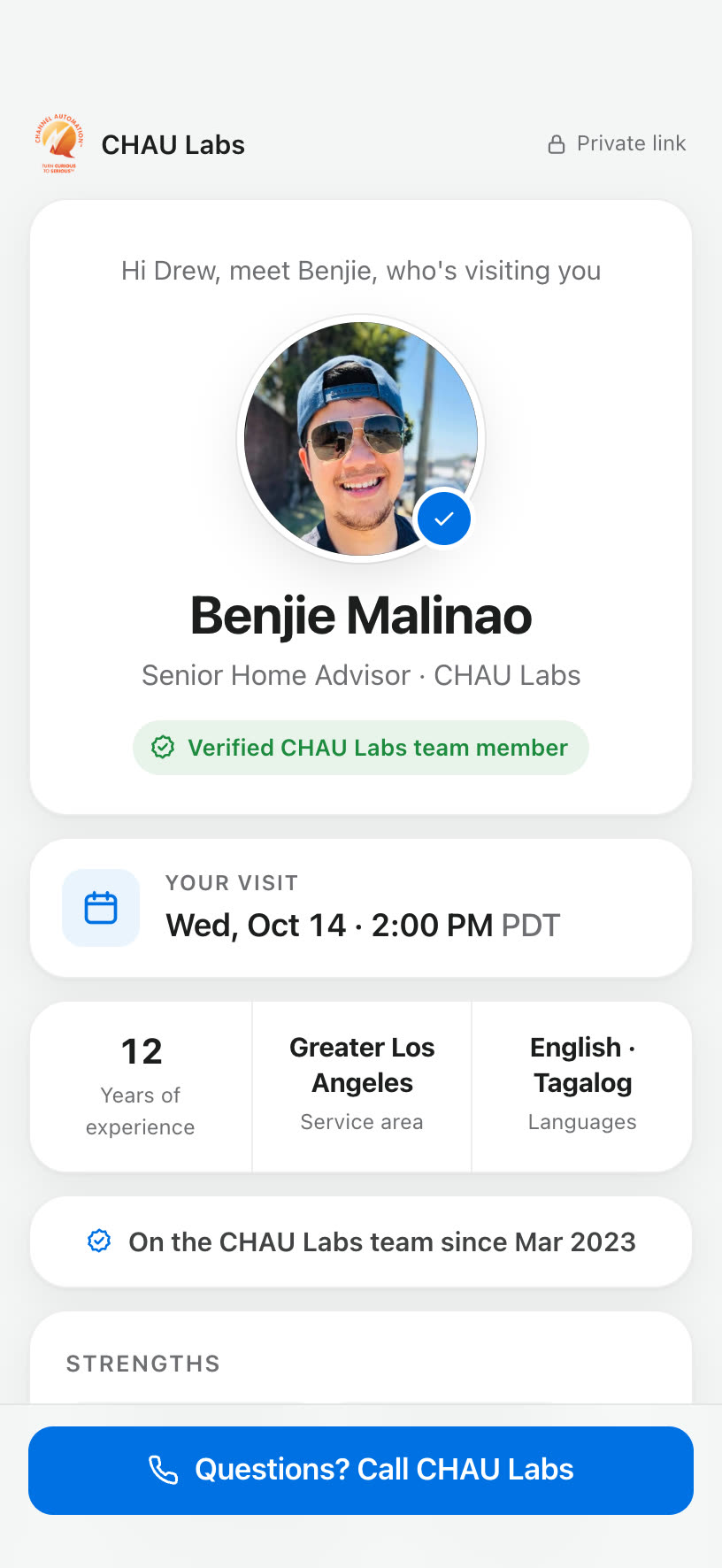
What the homeowner sees
The link opens a fast, phone-friendly page. It needs no app and no sign-in.
| Part | What it shows |
|---|---|
| Greeting | "Hi Drew, meet Benjie, who's visiting you". Only the homeowner's first name. |
| Rep | Photo, name, title and company, with a Verified team member badge. |
| Your visit | The date and time, with the time zone (for example "Wed, Oct 14 · 2:00 PM PDT"). |
| At a glance | Years of experience, service area and languages. |
| Team since | "On the CHAU Labs team since Mar 2023". |
| About them | Strengths, how they work, a short bio and certifications. |
| Call button | Questions? Call {your company}. It always calls your company number, never the rep's personal phone. |
Rep setup: fill in and publish a Public profile
Each rep does this once, in their own profile. It takes a few minutes.
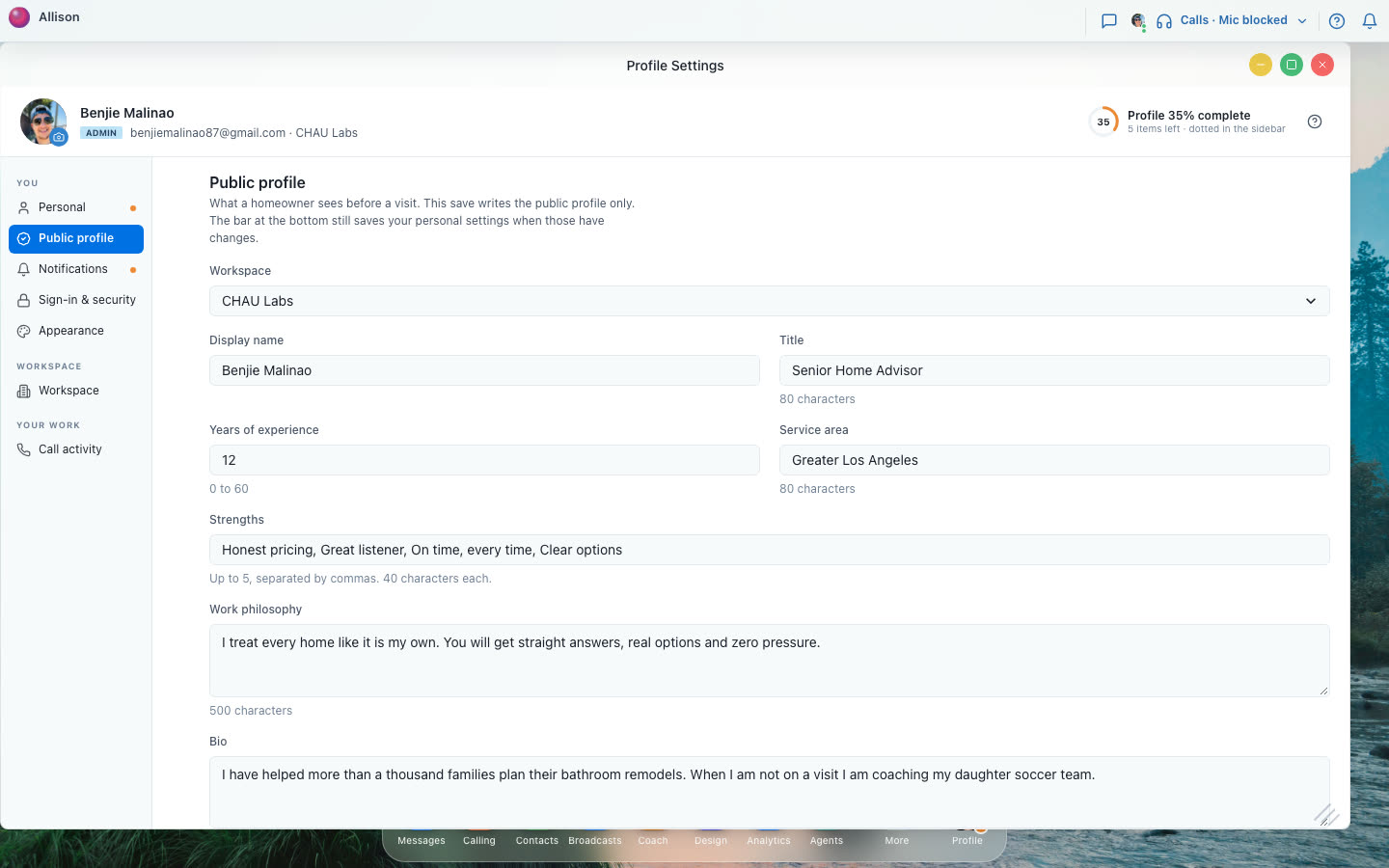
- In the dock, click your avatar (Profile), then choose Profile.
- In the left rail under You, click Public profile.
- If you belong to more than one workspace, pick the Workspace this profile is for.
- Fill in Display name, Title, Years of experience and Service area (a region such as "Greater Los Angeles", never a home address).
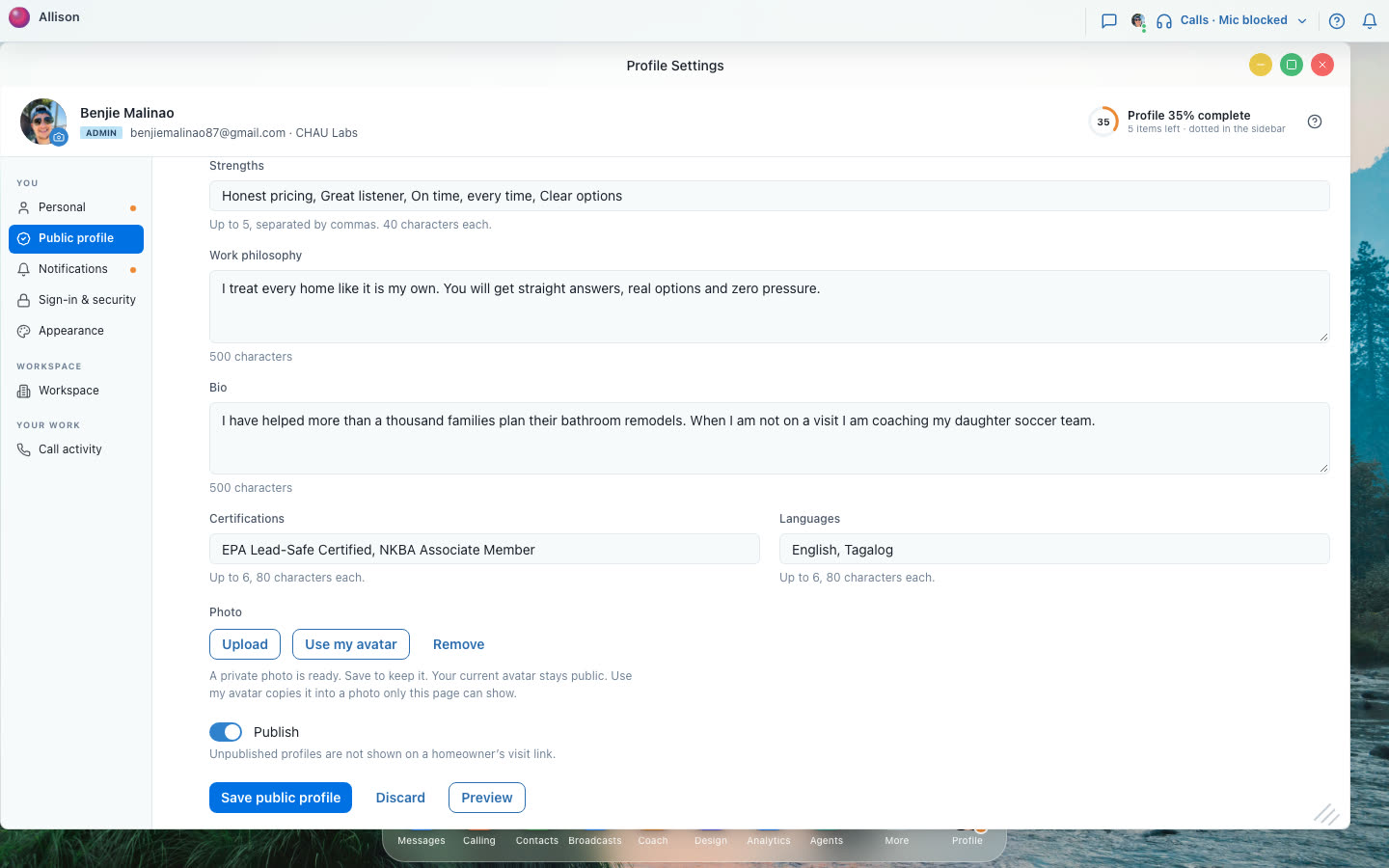
- Add Strengths (up to 5, separated by commas), your Work philosophy, a short Bio, Certifications and Languages.
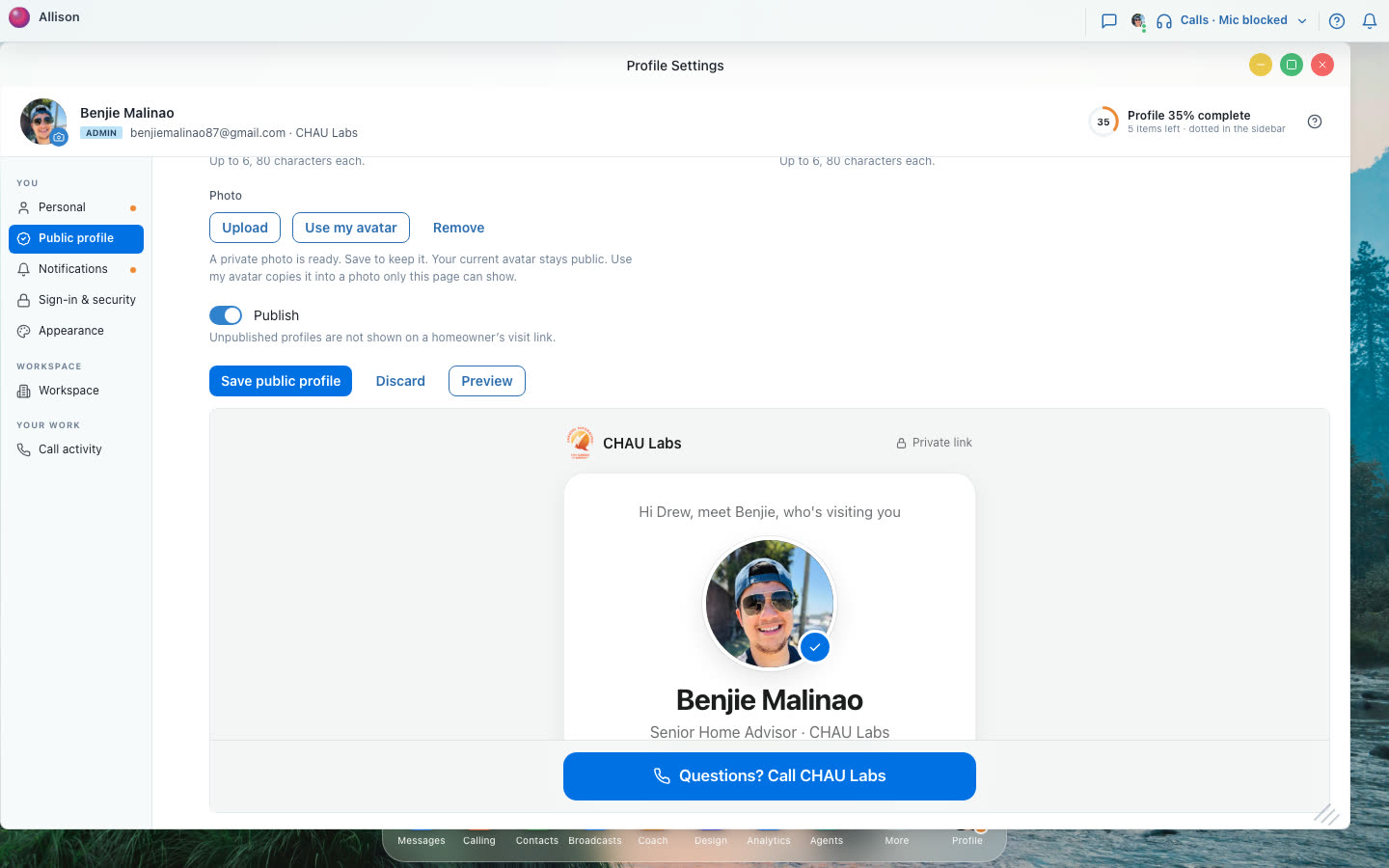
- Add a photo: Upload a new one, or click Use my avatar to copy your current avatar.
- Click Preview to see the page exactly as a homeowner will.
- Switch on Publish and click Save public profile.
Send it before the visit
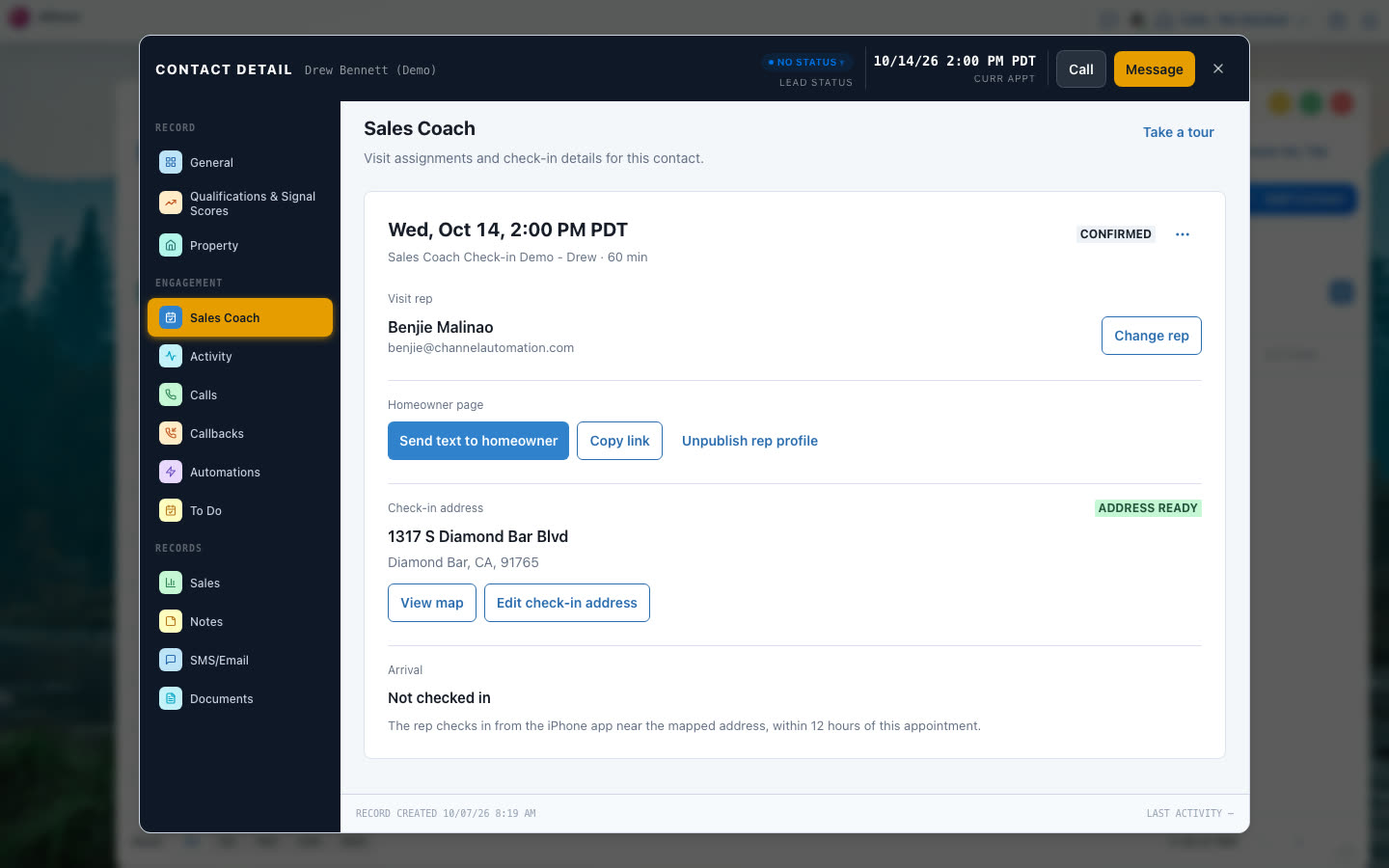
- Open the contact and go to Sales Coach.
- Check the visit has a Visit rep. Use Assign rep or Change rep if needed.
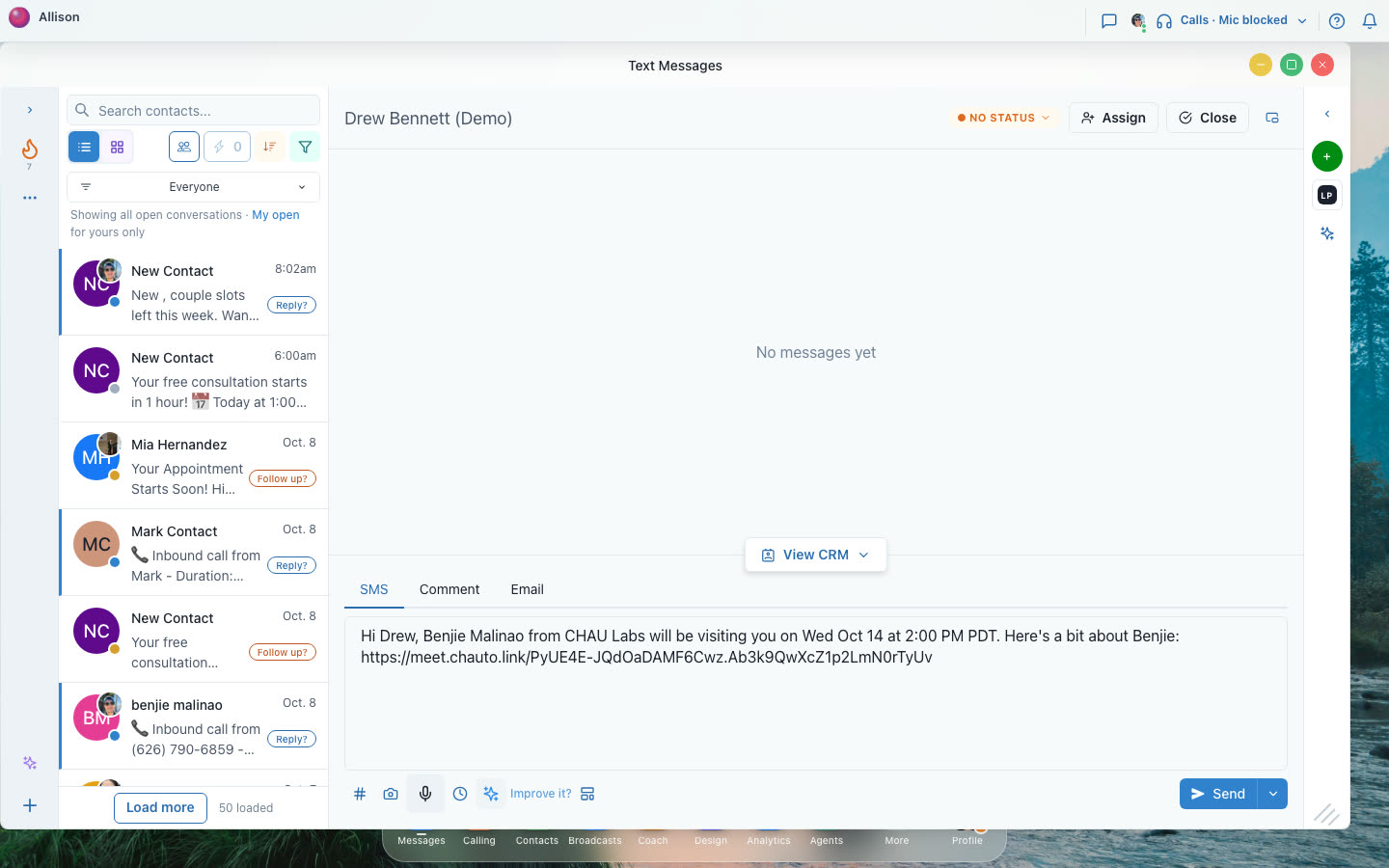
- Under Homeowner page, click Send text to homeowner.
- LiveChat opens on that contact with the message already in the SMS box. Read it, change anything you like, and press Send.
| Button | What it does |
|---|---|
| Send text to homeowner | Opens LiveChat with an editable text and the link. Works only for an upcoming visit. |
| Copy link | Copies the link for email, your own phone or anywhere else. Works for any visit. |
| Unpublish rep profile | Owners and admins only. Hides that rep's profile from every homeowner link straight away. |
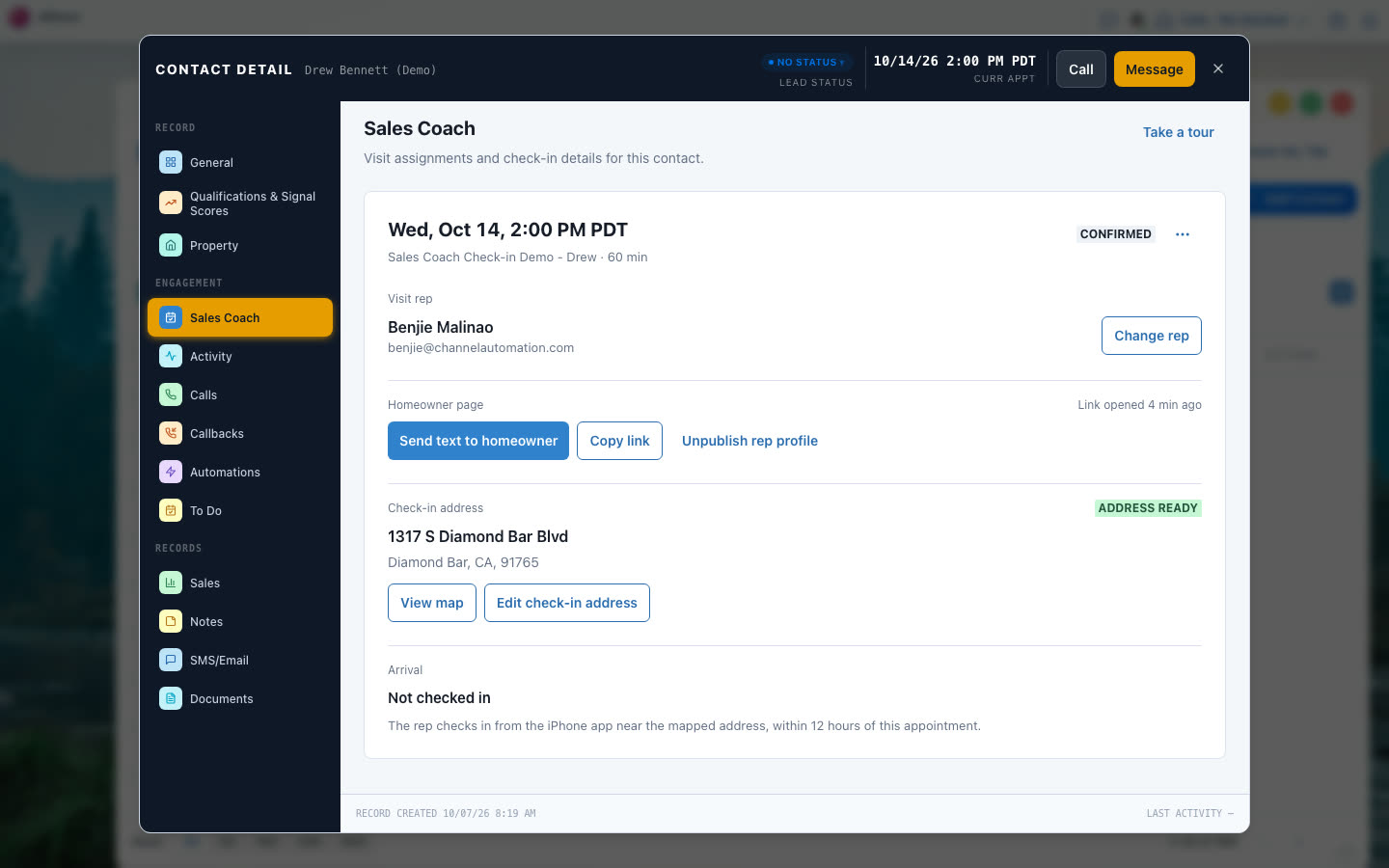
Link opened
Once the homeowner opens the page, the visit shows Link opened with how long ago. Hover it to see the first open and how many opens were recorded.
Privacy and what happens when things change
| Situation | What the homeowner sees |
|---|---|
| Upcoming visit, rep published | The rep's profile and the visit date and time. |
| Upcoming visit, no rep or not published | Your company and the visit date and time. |
| Visit already happened | The rep's profile, without a date. |
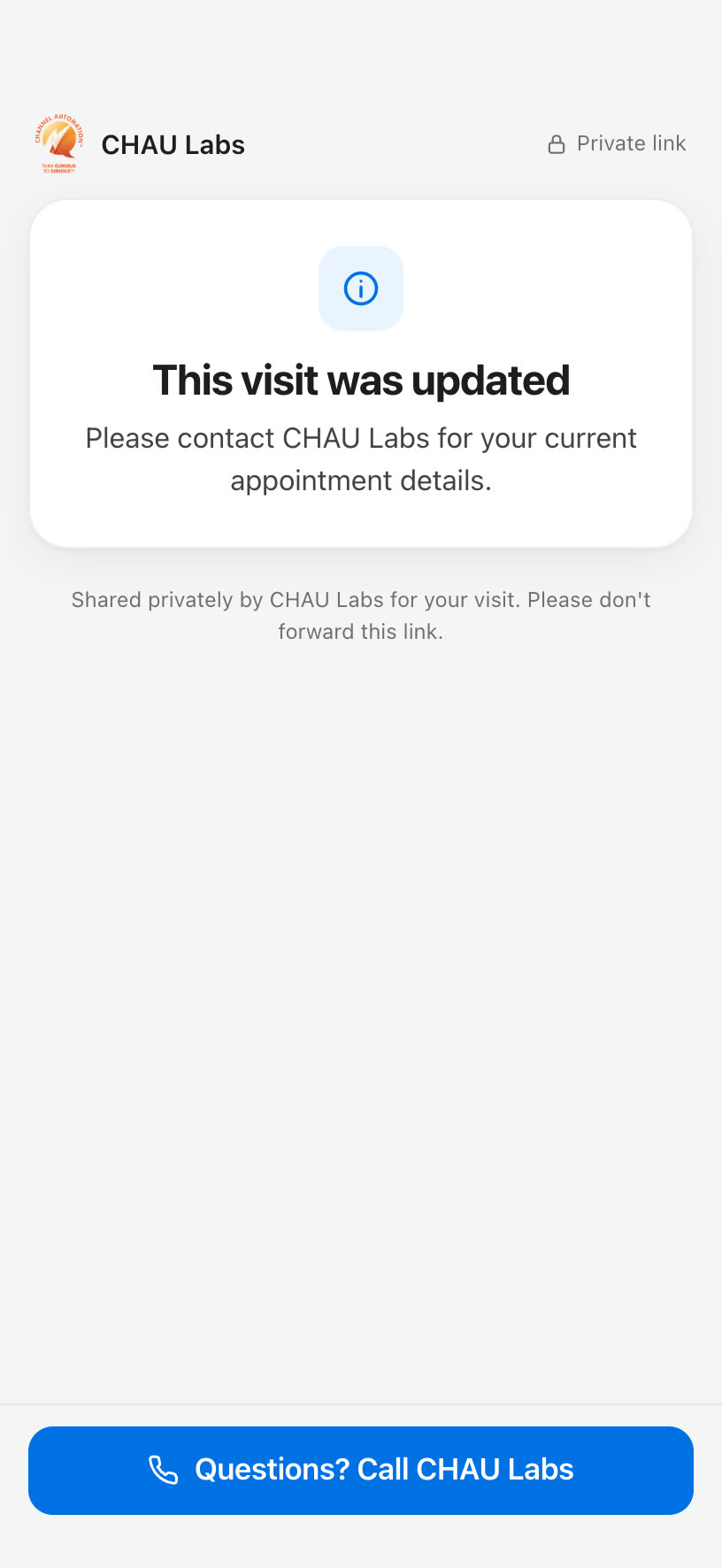
| Visit cancelled or rescheduled | "This visit was updated" and your company's call button. |
| Rep changed after sending | The new rep, the next time they open the link. |
| Rep removed from the workspace or unpublished | Your company instead of the rep. |
| No time zone on the appointment | The page leaves out the date and time rather than guess. |
- Each link belongs to one visit and can't be guessed. The page is hidden from search engines.
- The page shows only the homeowner's first name and the visit time. No address, phone or email.
- The page asks homeowners not to forward the link.
Who can do what
| Role | Can do |
|---|---|
| Any member | Fill in, preview and publish their own Public profile. |
| Manager | Send text to homeowner and Copy link from Sales Coach visits they can see. |
| Owner, admin | Everything above, plus Unpublish rep profile for any rep. |
Daily routine (2 minutes)
- Look at tomorrow's visits and make sure each has a Visit rep.
- Send each homeowner their rep page the day before, during business hours.
- Glance at Link opened the next morning. No open? A quick call confirms the visit.
- When a new rep joins, ask them to publish their Public profile in their first week.
Troubleshooting
| What you see | Why | Fix |
|---|---|---|
| No Homeowner page section on the visit | The feature isn't set up for your workspace yet, or you're not an owner, admin or manager. | Ask your account manager, or an owner or admin. |
| Send text to homeowner is greyed out | The visit has passed, or was cancelled or rescheduled. | Copy link still works. For a new date, use the new visit. |
| "This rep hasn't published a public profile" | The Visit rep hasn't switched on Publish. | Ask them to publish, or send anyway: the homeowner sees your company. |
| "No visit rep yet" | Nobody is assigned to the visit. | Assign a Visit rep first. |
| No date or time on the page | The appointment has no time zone. | Set the appointment's time zone in your calendar or CRM. |
| Initials instead of your logo, or no call button | The brand kit logo or phone isn't valid. | Fix the logo or phone in your email brand kit. |
| "Use my avatar" says it can't copy | The avatar is a colour, or wasn't uploaded in the app. | Click Upload and choose a photo. |
Questions
Does it send anything automatically? No. Every text is reviewed and sent by a person from LiveChat.
Can a homeowner see other visits or other reps? No. A link shows one visit and the rep assigned to it.
Is there a star rating? Not yet. The page shows how long the rep has been on your team instead, so every detail on it is something you can stand behind.
Is there anything to switch on? No feature switch. Reps publish their profiles, and you send links when you're ready.