---
title: "Phone Health"
description: "Every number you text or call from, and what needs action."
---
> Documentation Index
> Fetch the complete documentation index at: https://guides.channelautomations.com/llms.txt
> Use this file to discover all available pages before exploring further.
# Phone Health
[Open original guide with interactive examples →](/originals/phone-health/)
## Watch the walkthrough
A narrated tour of this guide, about two and a half minutes. Turn on captions with the CC button. The numbers on screen are example data. Prefer paper? [Download the PDF](/originals/phone-health/public-media/phone-health/phone-health-sop.pdf).
**The short version** Open **Contact Center** (dock → **More**) and click **Phone Health** in the left rail. Work through **Needs action** from the top: dispute blocked numbers with the carrier, then click **Mark disputed**. Use **Carrier blocks by carrier** → **Export CSV** for reports. Nothing to switch on.
## Why it matters
Your phone numbers carry your business's reputation with the carriers. When AT&T, Verizon or T-Mobile blocks a number, the person you call never hears it ring. When carriers filter a number's texts, they never arrive. Either way, every call and text from that number is wasted, and nothing on screen used to say so.
**Before**Problems were spread across Number Rotation tabs, call results and texting reports, if they showed at all.
**Now**One page lists every number, what's wrong with it, and the next step.
**Why that helps**You fix a burned number in minutes instead of discovering it weeks later in lower answer and reply rates.
## Open Phone Health
1. In the dock, click **More**, then **Contact Center**.
2. In the left rail, click **Phone Health** (the last section).
3. Pick **14 days** or **30 days**. Click **Refresh** any time; the line beside it says how fresh each source is.
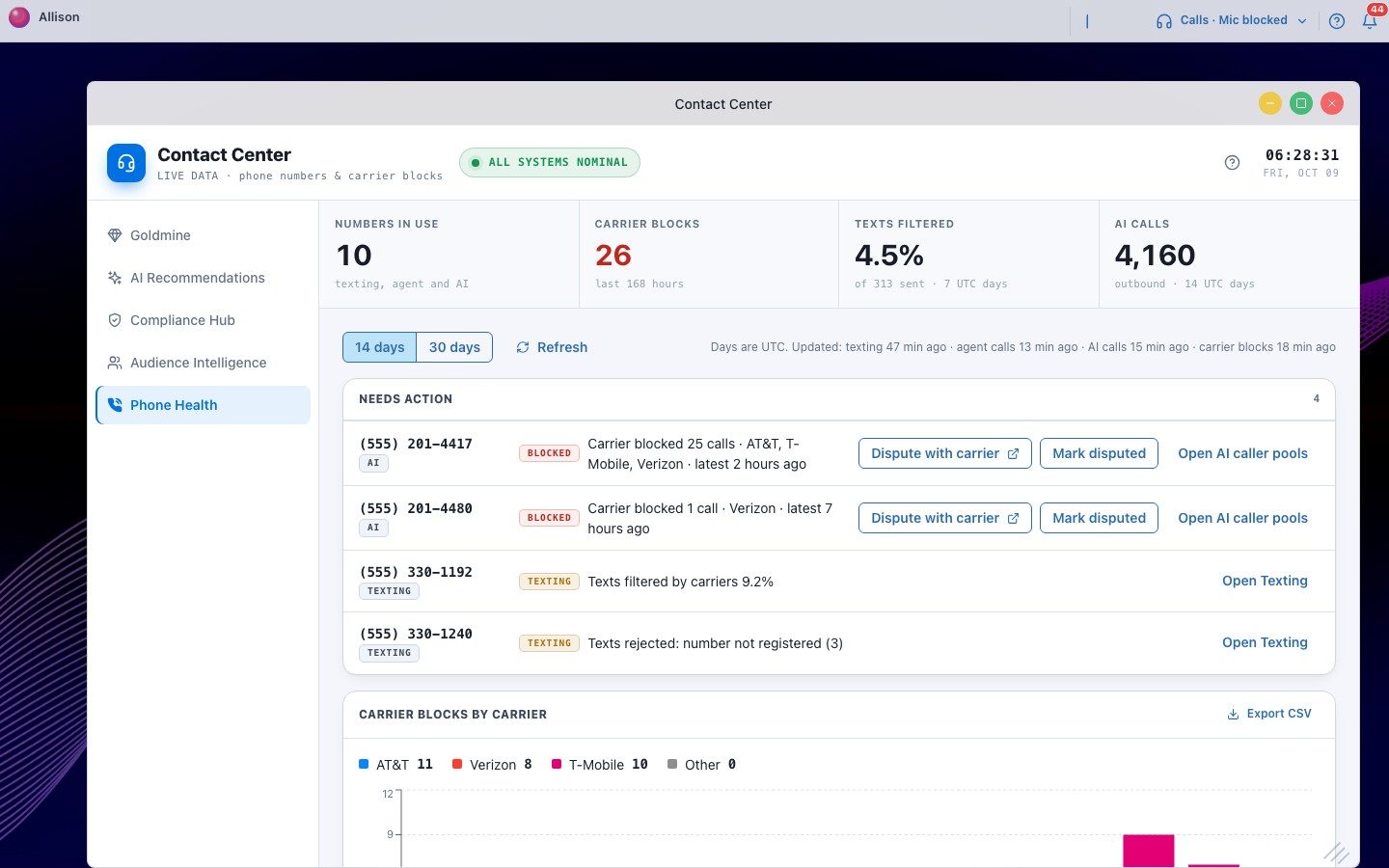
Phone Health with example data: the four tiles, then Needs action.
Owners, admins and managers see it in the dock. Agents don't.
## The four tiles
| Tile | What it counts |
| --- | --- |
| **Numbers in use** | Every number you text or call from: texting, your team's calls and AI calls, plus numbers on your account. |
| **Carrier blocks** | Calls a carrier confirmed it blocked, in the last 168 hours (7 days back from now). |
| **Texts filtered** | The share of texts carriers filtered in the last 7 days. Shows "—" until texting health is turned on in Number Rotation. |
| **AI calls** | Outbound AI calls in the period. The same figure as Voice AI analytics. |
A dash (—) always means there's no data for that figure. It never means zero.
## Needs action
Only numbers with a problem appear here, worst first. Each row says why it's listed.
| Reason | When it shows | Next step |
| --- | --- | --- |
| **Carrier blocked N calls** | At least one confirmed carrier block in the last 168 hours. | Dispute with the carrier, mark it disputed, and stop dialing from it for now. |
| **Texts filtered by carriers N%** | More than 5% of texts filtered, with at least 25 sent in the last 7 days. | Check message content and volume per number; park the number in Number Rotation if it keeps happening. |
| **Texts rejected: number not registered** | Any text rejected because the number isn't on an approved texting registration (last 7 days). | Ask us to add the number to your texting registration. |
**Opening the right place.** Each row has a button that opens the matching part of **Number Rotation**: **Open Texting**, **Open Agent calls** or **Open AI caller pools**. That's where you park a number or change a pool.
## Dispute a block, then mark it disputed
1. On a blocked number, click **Dispute with carrier**. It opens that carrier's own dispute page (AT&T, Verizon or T-Mobile). File it there.
2. Back in Phone Health, click **Mark disputed**. Pick the carrier and, if you like, add a note such as your ticket number. Click **Save**.
3. The row now shows **Disputed**, the carrier, when you filed, and how many blocks happened _since_. If that number stays at zero, the dispute worked.
4. When the carrier answers, click **Resolve** and choose **Carrier unblocked it**, **Still blocked** or **Withdraw dispute**.
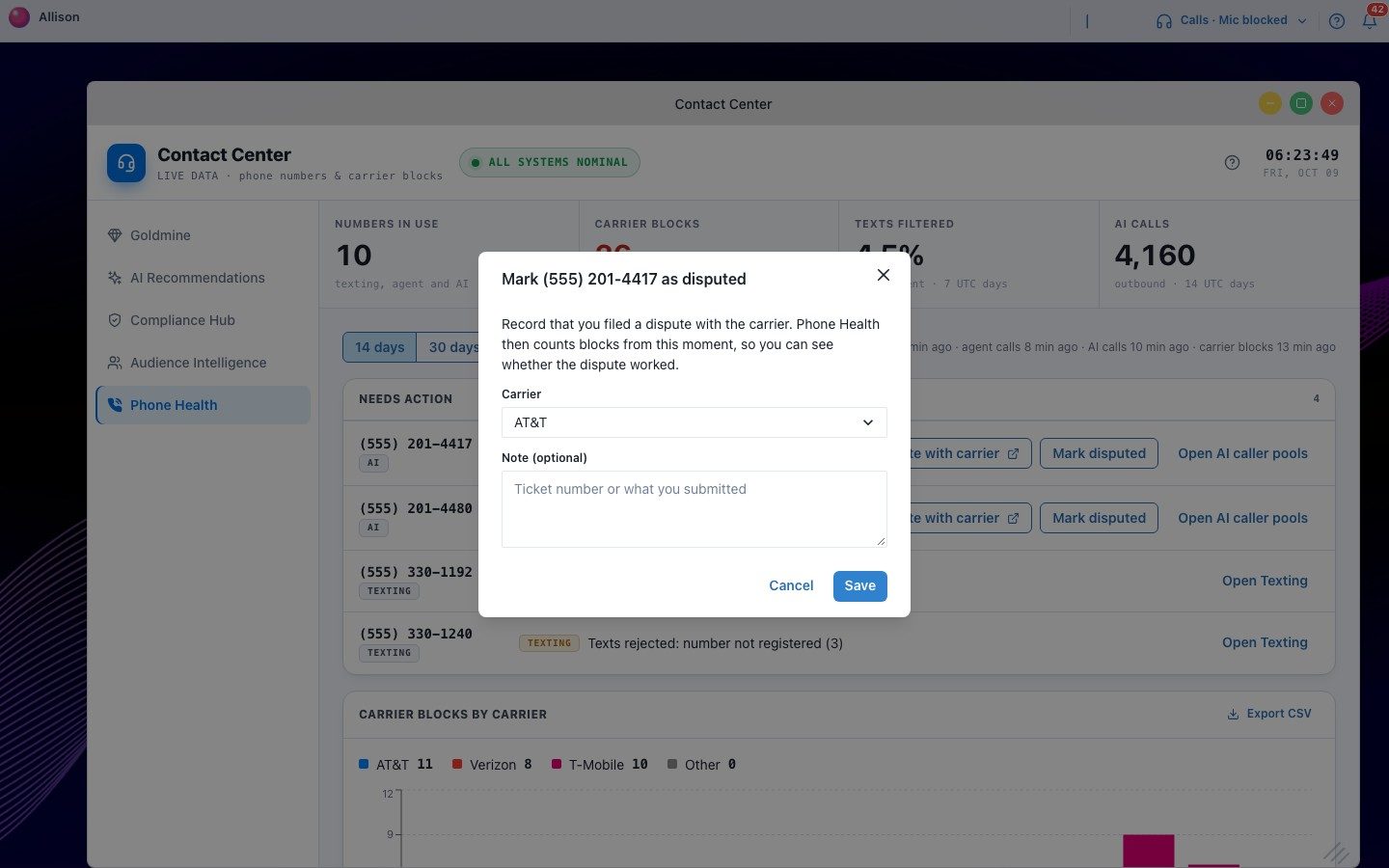
Mark disputed: choose the carrier and add an optional note.
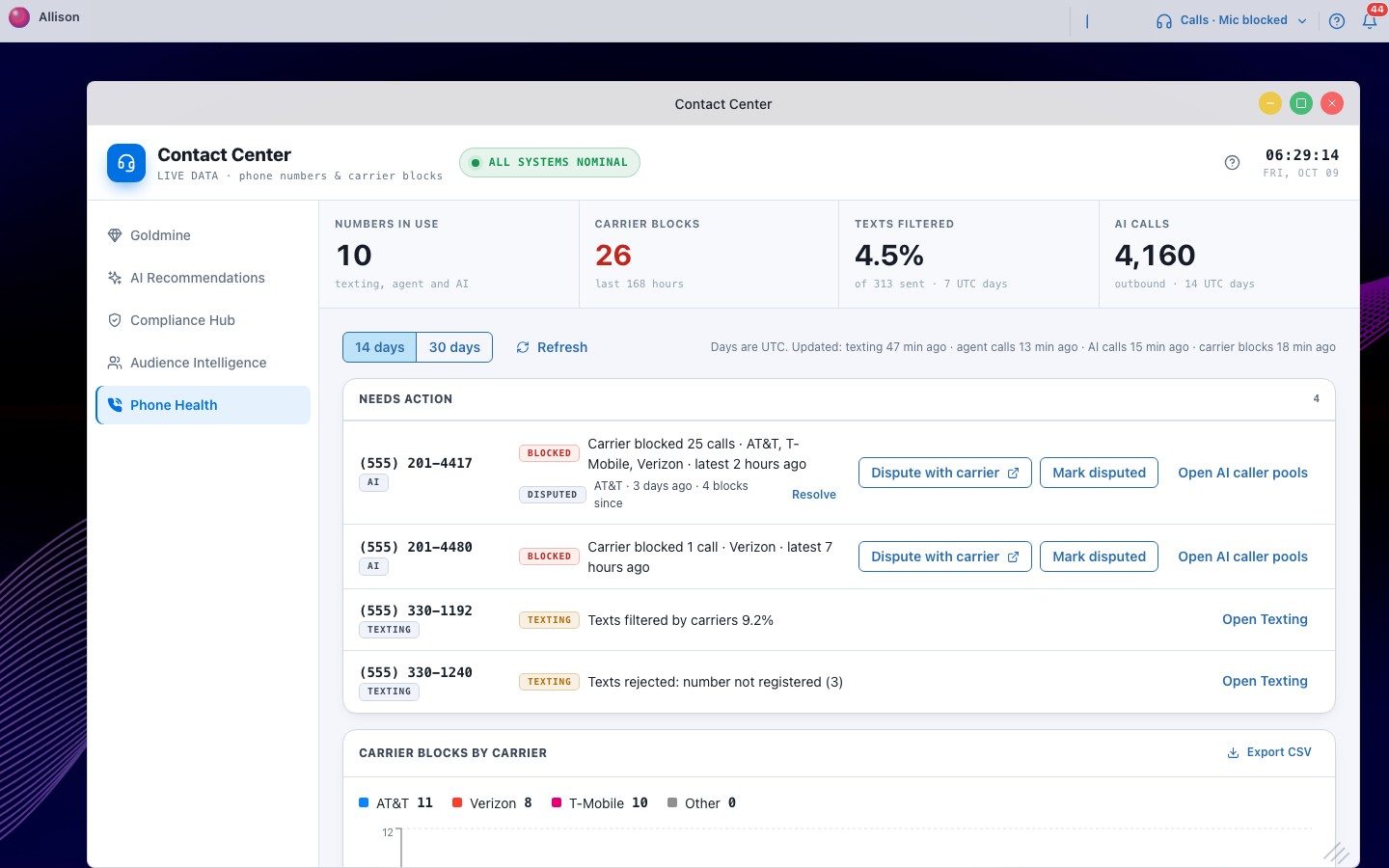
After saving: the dispute and the blocks since you filed.
Only owners, admins and managers can mark or resolve a dispute. Marking twice doesn't create a second record.
## Report blocks by carrier
**Carrier blocks by carrier** shows confirmed blocks for each day, stacked by AT&T, Verizon, T-Mobile and other carriers, with the totals above the chart. **Export CSV** downloads exactly those rows: one line per day, number and carrier, with the time of the latest block and the dispute link.
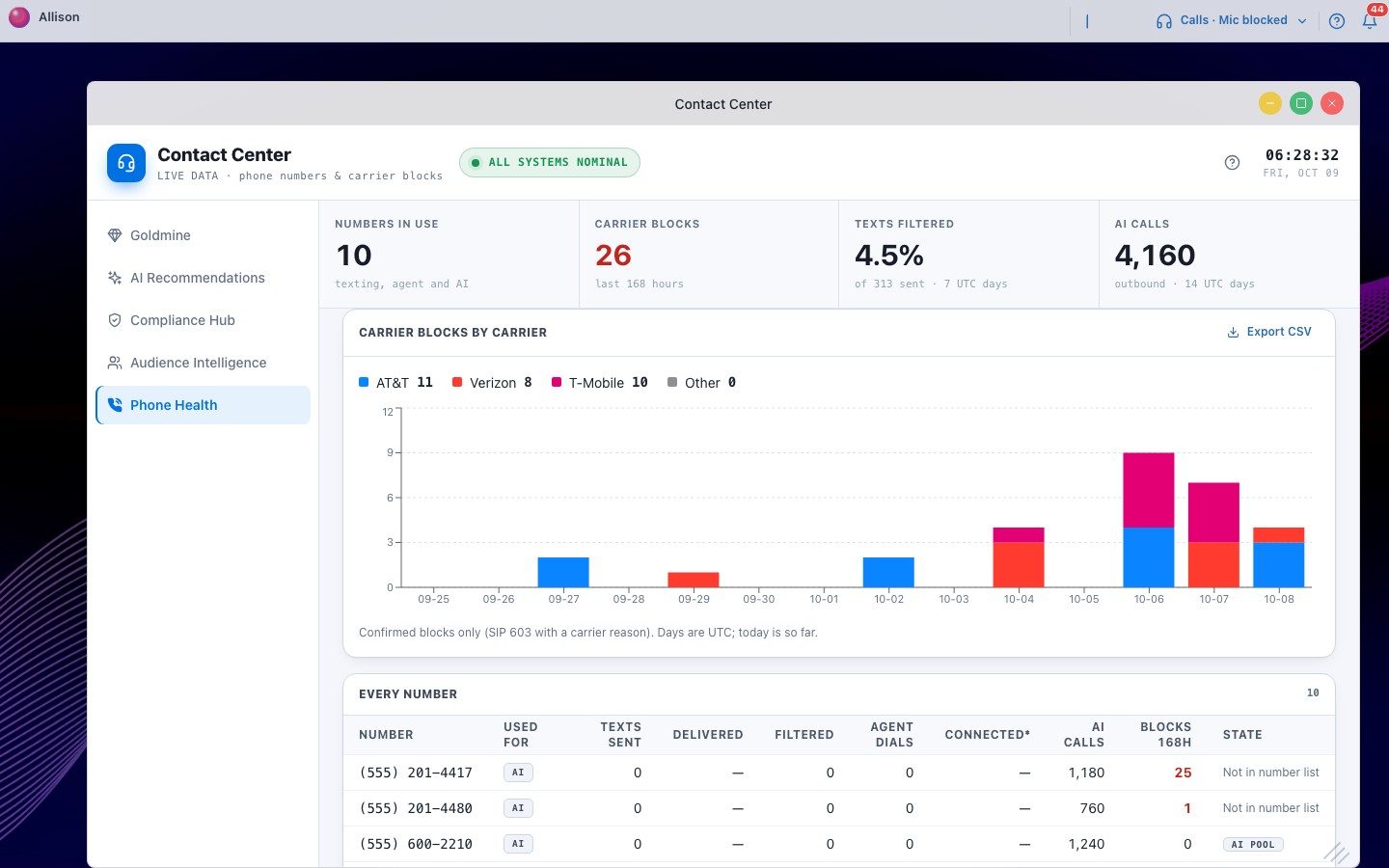
Carrier blocks by carrier over 14 days, with Export CSV at the top right.
Days are UTC, and today counts only what has happened so far.
## Every number
A row for every number with its activity for the period: texts sent, delivered and filtered, agent dials and connected calls, AI calls, and blocks in the last 168 hours. **Used for** shows whether it texts, makes agent calls or makes AI calls. **Not in number list** means a number placed calls (usually AI calls) but isn't in your workspace's number list. It's shown anyway so a block on it isn't missed.
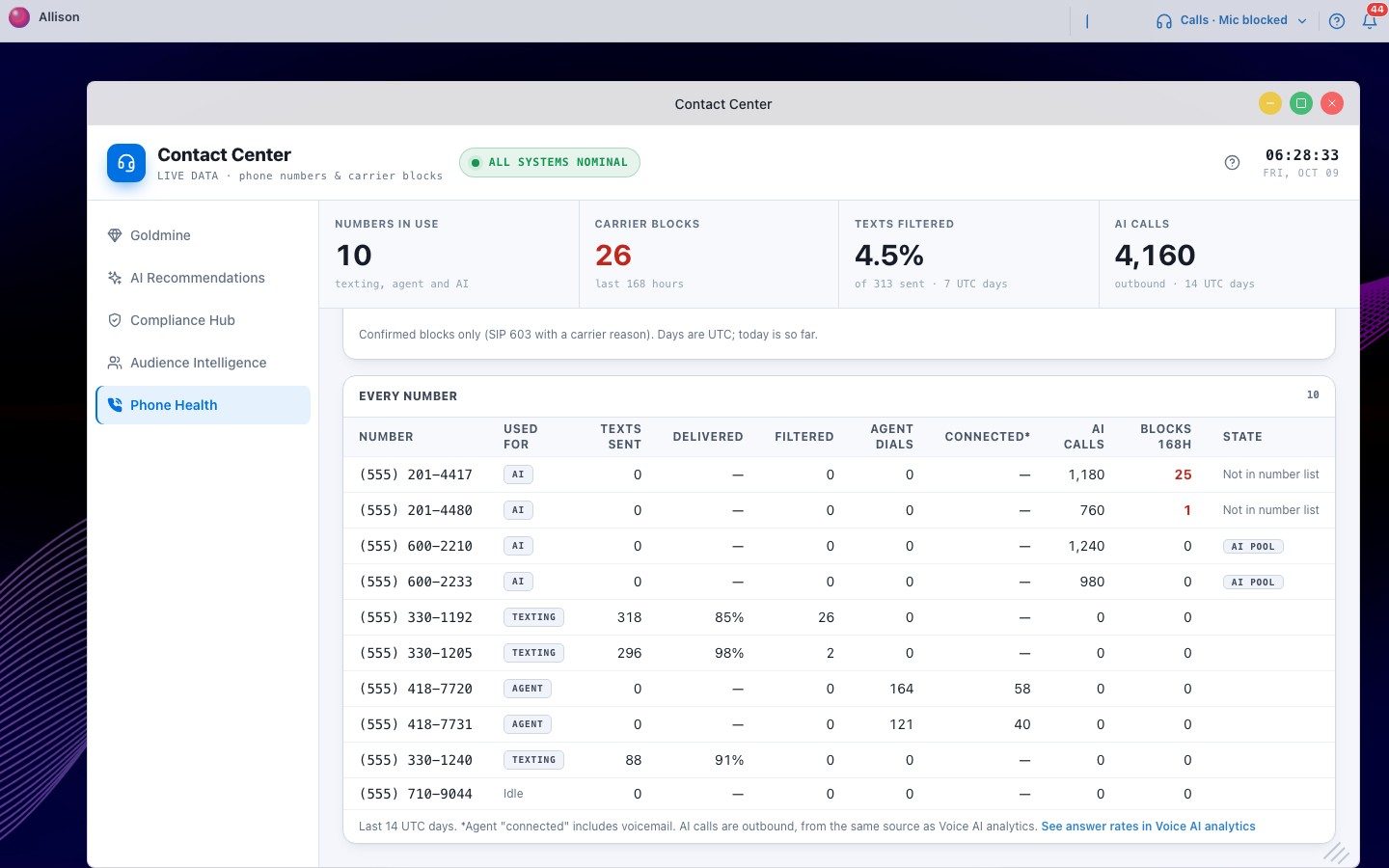
Every number. Agent "connected" includes calls that reached voicemail.
For AI answer rates, click **See answer rates in Voice AI analytics** under the table. It opens Analytics on the Voice AI view in a new tab.
## Will this number show in Needs action?
Enter what you see for one number over the last 7 days.
Carrier blocks (last 168 hours)
Texts sent
Texts filtered
Texts rejected as unregistered
## Verified caller ID (STIR/SHAKEN)
Carriers rate every call by how well the caller is verified. A call from a number registered to your verified business gets the top rating, called **A attestation**. Unverified calls get a lower rating and are more likely to be labeled "Spam Likely" or blocked. Registering won't stop every block, but it removes one of the most common reasons for them.
1. **Create a Business Profile** in your Twilio account's **Trust Hub**: legal business name, EIN, business address, website and an authorized contact. Review usually takes about a day.
2. **Create a SHAKEN/STIR registration** under that profile and add the numbers you call from. Review usually takes about three days.
3. **Optional: Voice Integrity.** This registers your numbers with the carriers' spam engines so they know the calls are yours.
Want help? Ask your account manager. We can walk you through Trust Hub; you supply the business details, because the registration is in your company's name.
## Weekly routine (5 minutes)
1. Open Phone Health and read **Needs action** top to bottom.
2. For each blocked number, file and mark the dispute. Stop dialing from it until blocks since filed stay at zero.
3. For filtered or unregistered texting numbers, check content and volume, and ask us about registration.
4. Once a month, export **Carrier blocks by carrier** for your team or owner report.
## Troubleshooting
| What you see | What it means |
| --- | --- |
| Texting columns show "—" | Texting health isn't on for your workspace. Use **Turn it on in Number Rotation** above the table. |
| AI calls says "incomplete data" | AI call totals for this period are still being computed. Try again later, or pick 14 days. |
| "Last phone-account check failed" | Our last check of your phone account was refused. Reconnect your phone account or check its billing. |
| No "Mark disputed" button | Only owners, admins and managers can record disputes. |
| A number shows "Not in number list" | It made calls but isn't in this workspace's number list. It's listed so a block on it isn't missed. |
## Questions
**Does Phone Health change anything on its own?** No. It never parks a number or changes a pool. You decide, in Number Rotation.
**How fresh is it?** Carrier blocks are checked about every 15 minutes. Texting and AI call totals refresh several times a day. Each source shows "Updated … ago".
**Where do carrier blocks come from?** From your phone provider's own call reports. Read the [Carrier Block Detection guide](/numbers/carrier-block-detection/) for how a blocked call is detected.
Channel Automation · Help · Last updated 2026-10-09.
Questions? Ask your account manager, or open **Help Docs** inside the app — the same guidance lives there.
Source: https://guides.channelautomations.com/numbers/phone-health/index.mdx