---
title: "Personal QR"
description: "Let homeowners scan your code at the door to see who you are."
---
> Documentation Index
> Fetch the complete documentation index at: https://guides.channelautomations.com/llms.txt
> Use this file to discover all available pages before exploring further.
# Personal QR
[Open original guide with interactive examples →](/originals/personal-qr/)
## Watch the 2-minute walkthrough
A narrated walkthrough: the problem it solves, publishing your page, showing your code from the Profile tab, what the homeowner sees, sharing your link, and how managers keep track. Turn on captions with the CC button.
**The short version** On the web, open **Profile Settings → Public profile**, fill in your page, switch on **Publish** and save. In the Sales Coach app, tap the **Profile** tab. Your QR code is ready to show at the door. Tap it to make it bigger, tap your link to copy it, or tap **Share my link**.
## Why it matters
When a rep knocks, the homeowner sees a stranger. Some won't open the door, and some cancel, because they can't tell who is really standing there.
**Before**No easy way for a homeowner to check who the rep is or which company sent them.
**Now**One scan opens a verified page: the rep's photo, name, title, company, experience and a call button for your office.
**Why that helps**Homeowners feel safe opening the door, and your reps start the visit with trust instead of doubt.
## Step 1: Publish your page (on the web)
1. Click your photo in the dock, choose **Profile**, then **Public profile**.
2. Add your photo, title, years of experience, service area, strengths, how you work and a short bio. Everything here is what homeowners will see.
3. Switch on **Publish** and click **Save public profile**.
4. Under **Your personal link** you'll see your link with a **Copy** button. If it isn't live yet, one line tells you why.
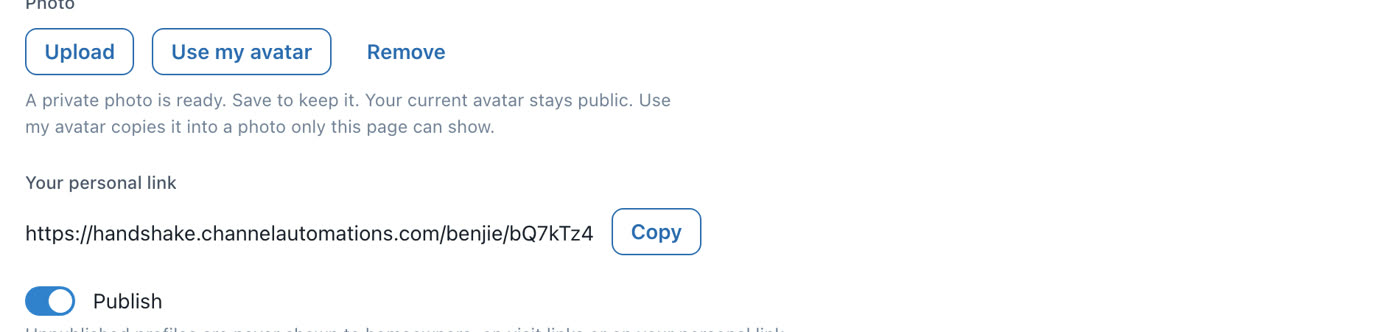
**Your personal link** and the **Publish** switch in Profile Settings.
## Step 2: Open the Profile tab (in the Sales Coach app)
1. Open the Sales Coach app and tap **Profile**, the last tab.
2. Your QR code sits next to your name and company, with a **Published** badge at the top.
3. Tap the code to make it bigger, so it's easy to scan from a step away.
4. Below it you'll see your team details, your strengths and the office contact the homeowner can call.
**Update the app.** The Profile tab needs the latest Sales Coach app. If you don't see it, update the app and open it again.
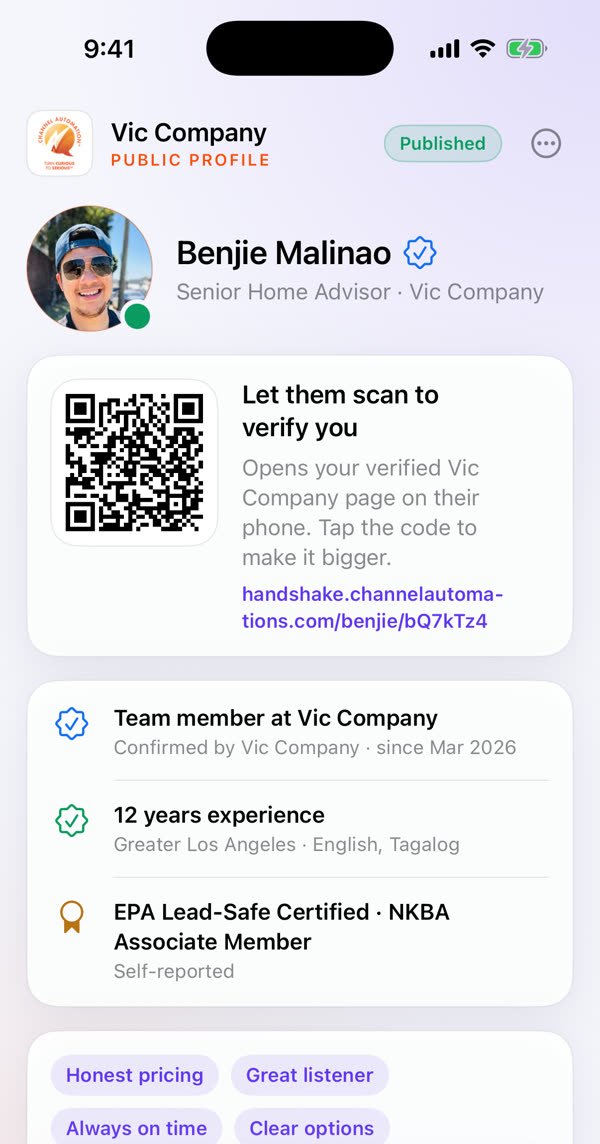
The **Profile** tab in the Sales Coach app.
## Step 3: At the door
The homeowner points their phone's camera at your code. Your page opens in their browser, with no app to install.
- Your photo, name and title, with a **Verified team member** badge for your company.
- Years of experience, service area and languages, and how long you've been on the team.
- Your strengths, how you work and a short bio.
- A button to call your office, if your company phone is set.
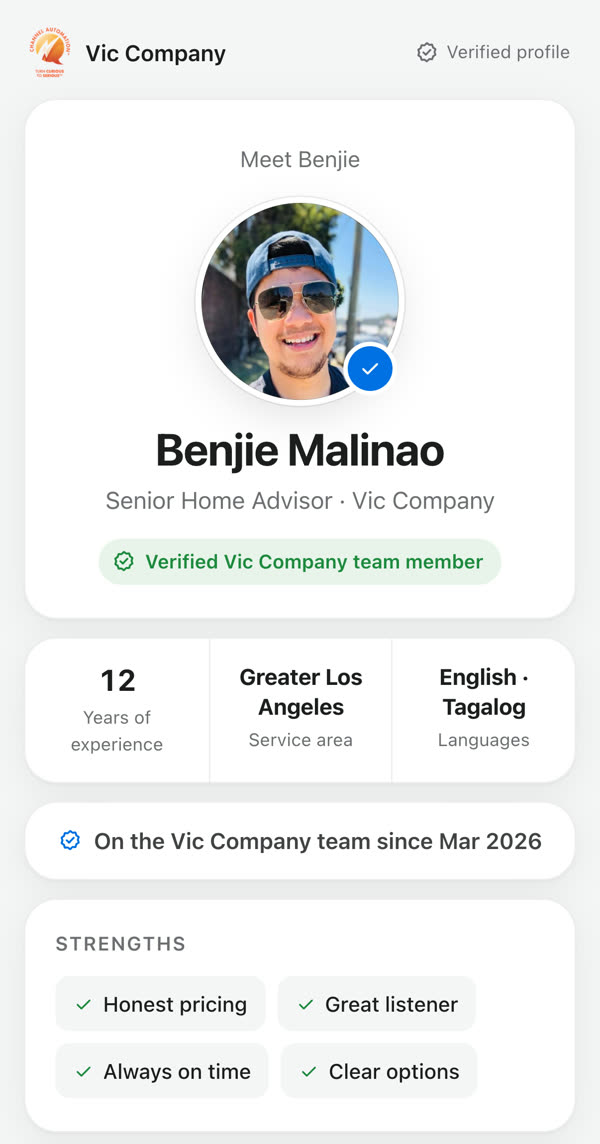
What the homeowner sees after scanning.
## Share it before the visit
- **Copy:** on the Profile tab, tap your link. It says **Link copied**. Paste it into a text before you go.
- **Share:** tap **Share my link** to send it with Messages, email or any app on your phone.
- **From the web:** click **Copy** next to **Your personal link** in Profile Settings.
## Stay in control
- **Live only while published.** Unpublish your profile and the code stops working right away. In the app, the code turns blurry with a lock.
- **Live only while you're on the team.** If someone leaves your workspace, their code stops working.
- **Replace link.** Lost a printed card? On the Profile tab, tap **•••**, then **Replace link**, and confirm. The old code stops working and you get a new one.
- **Visit links don't change.** The per-visit Meet Your Rep link you text before an appointment keeps working as before.
## For managers: see the whole team
1. Click your photo in the dock, choose **Profile**, then **Team public links** under Workspace.
2. Each rep with a public profile is listed with their profile status, whether their link is **Live**, and when it was created or replaced.
3. Click **Copy link** to grab a live link. Owners and admins can click **Unpublish** to switch a rep's link off.
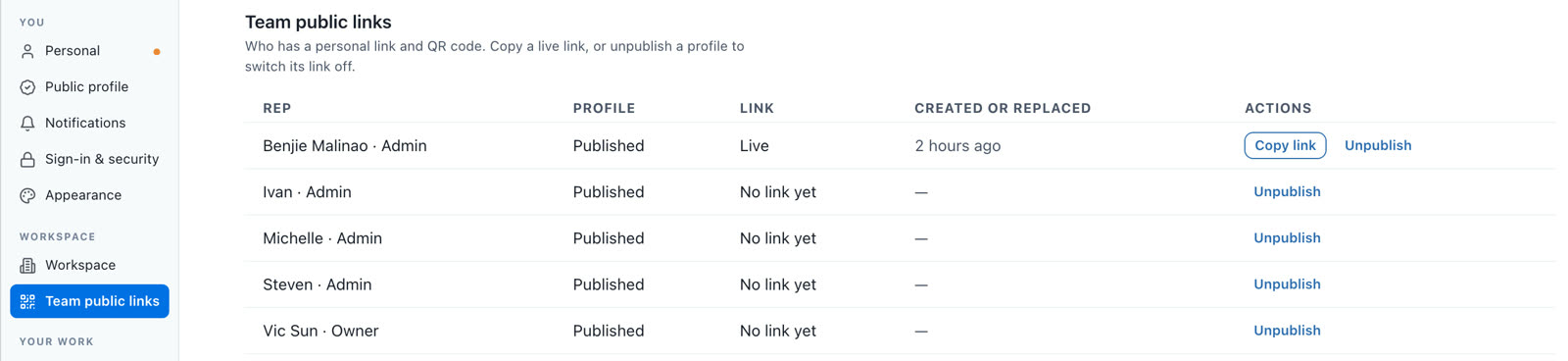
**Team public links** in Profile Settings.
## Who can do what
| Who | Gets a personal link | Team public links | Unpublish a rep |
| --- | --- | --- | --- |
| Owners and admins | Yes, with a published profile | View and copy | Yes |
| Managers | Yes, with a published profile | View and copy | No |
| Field reps | Yes, with a published profile and at least one Sales Coach visit assigned | No | Their own profile only |
| Other team members | No | No | Their own profile only |
## Troubleshooting
| What you see | Why | Fix |
| --- | --- | --- |
| The QR code is blurry with a lock | Your profile isn't published, so the page wouldn't open. | Publish it in Profile Settings → Public profile, save, then pull down on the Profile tab to refresh. |
| "Personal links are for field reps" | You don't have a Sales Coach visit assigned yet. | Your link appears after your first assigned visit. Ask your office if you think this is wrong. |
| "Save a public profile to get a personal link" | You haven't saved a public profile in this workspace. | Fill in Profile Settings → Public profile and save. |
| The homeowner sees "This page is unavailable" | The profile was unpublished, the link was replaced, or the rep left the team. | Publish again, or share the new link from the Profile tab. |
| No call button on the page or office card | Your company phone isn't set. | Ask an admin to add the company phone in your Email brand kit settings. |
| No Profile tab in the app | The app needs updating. | Update the Sales Coach app and open it again. |
## Questions
**Do we need to turn it on?** No. Every rep who publishes a profile and meets the rules above gets a link.
**Does the link change if I change my name?** No. The code stays the same. Only Replace link gives you a new code.
**Is the personal link private?** No. It's meant to be shown and shared. That's why it only works while your profile is published, and why you can replace it at any time.
**Can you help us get started?** Yes. Contact our support team and we'll walk you through it.
Channel Automation · Help · Last updated 2026-10-16.
Questions? Ask your account manager, or open **Help Docs** inside the app — the same guidance lives there.
Source: https://guides.channelautomations.com/coach/personal-qr/index.mdx